
Email Notification
Introduction
Most of the notifications on CircularONE will be sent via email to the registered email address of the user accounts.
Add Existing Users within Partnership to an Email List
To edit an email list to include more users that are within your partnership, you can:
Steps | ||
|---|---|---|
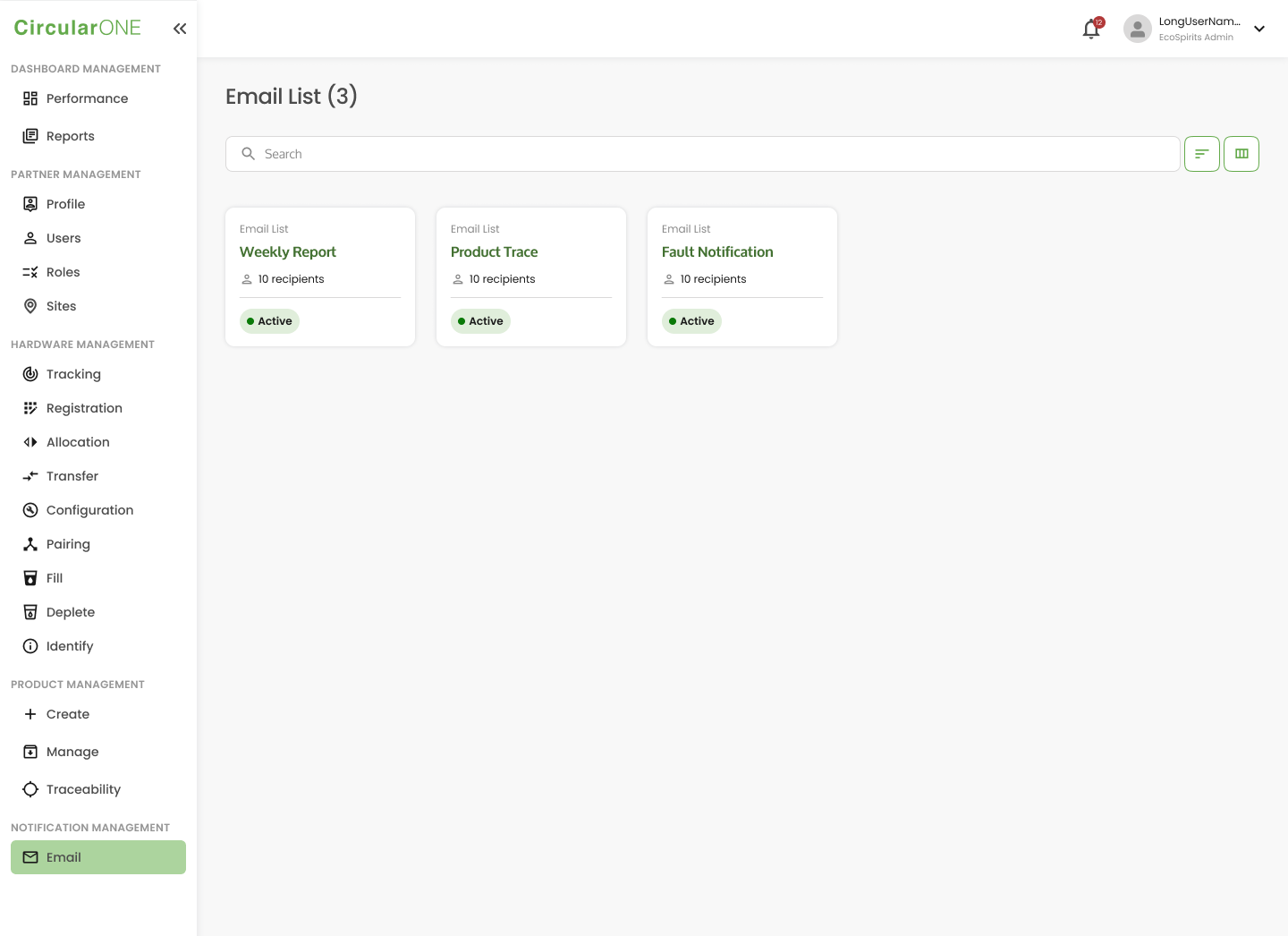
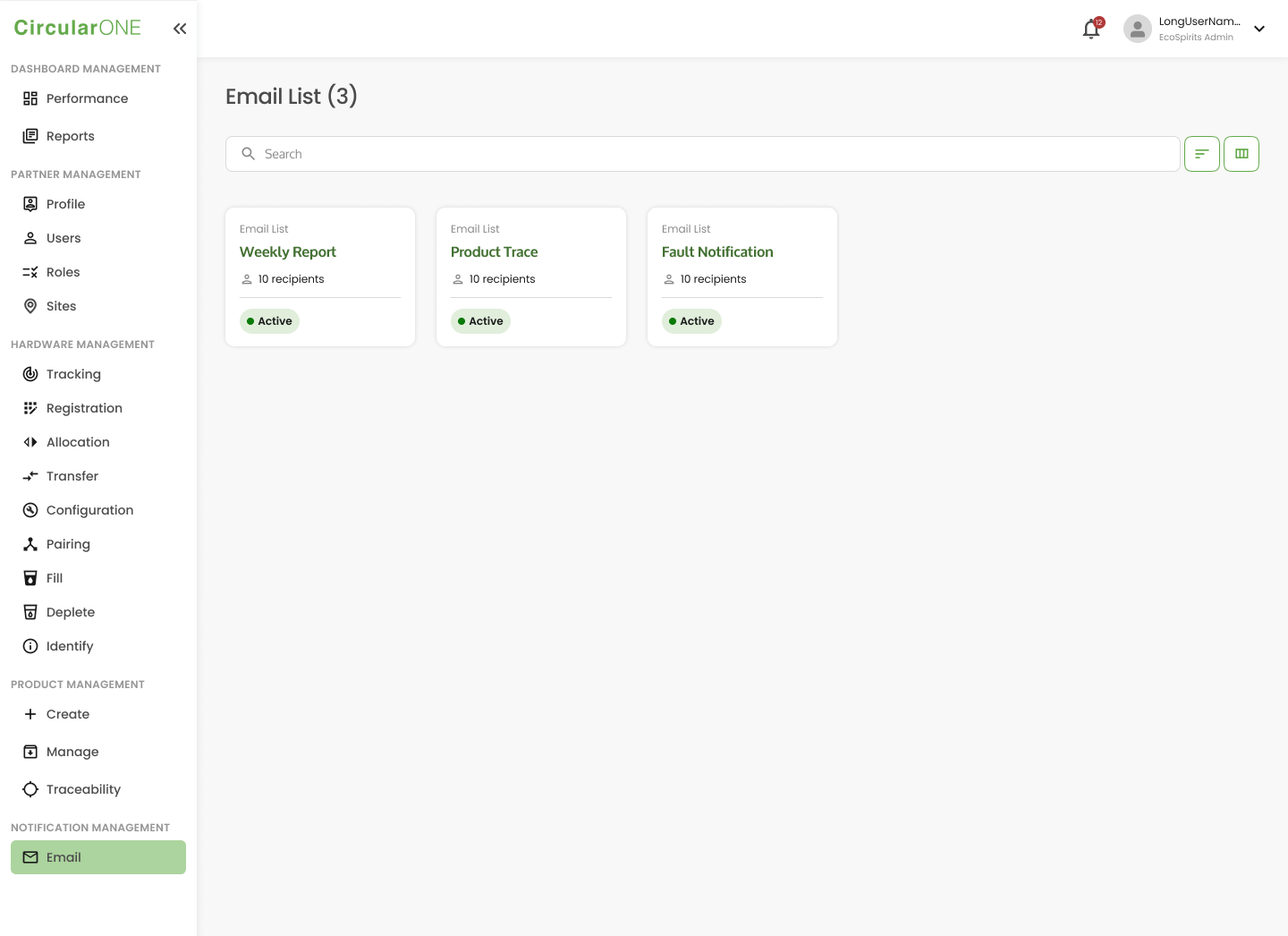
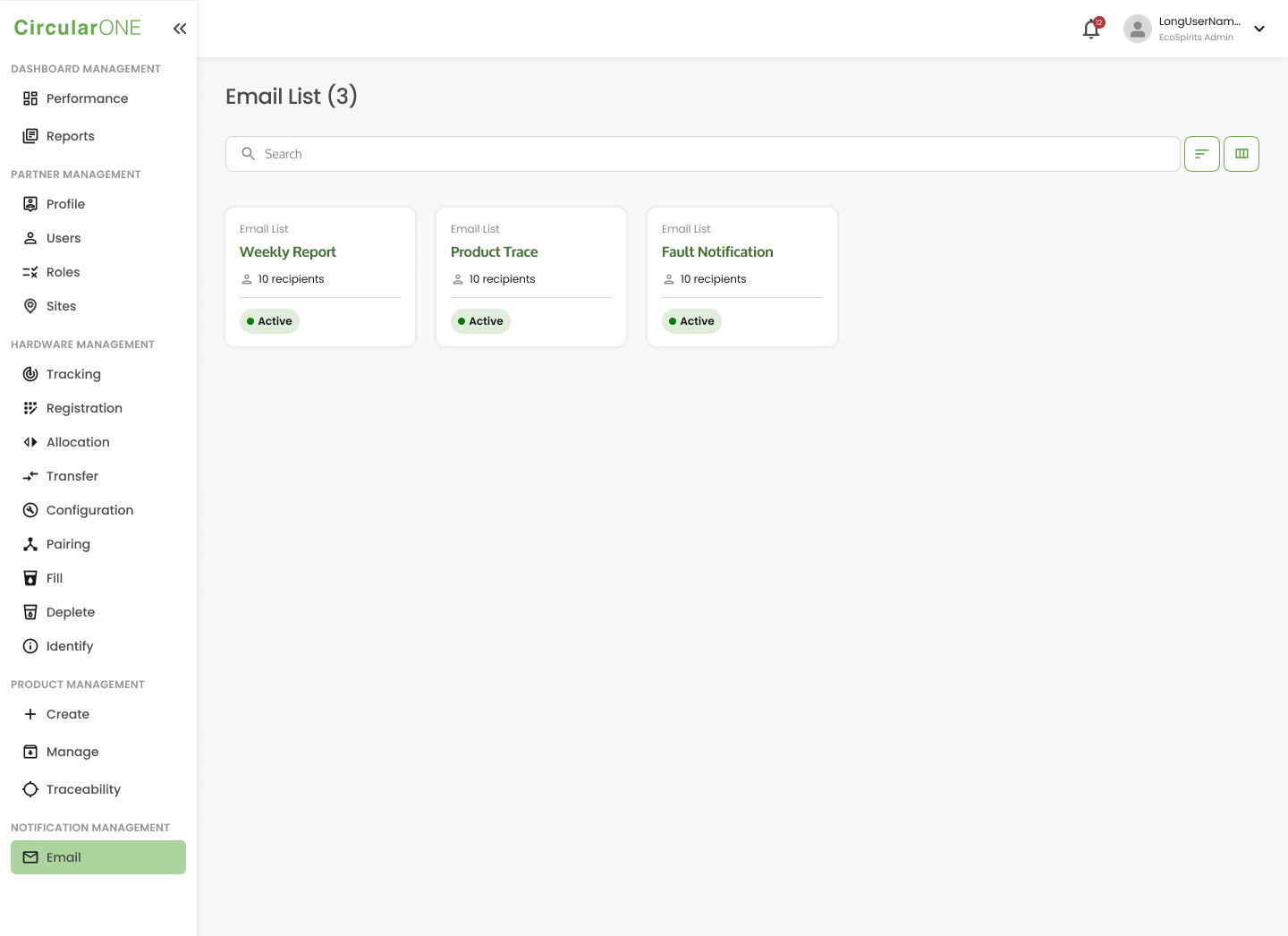
1 | Head to ‘Email’ under Notification Management | |
| ||
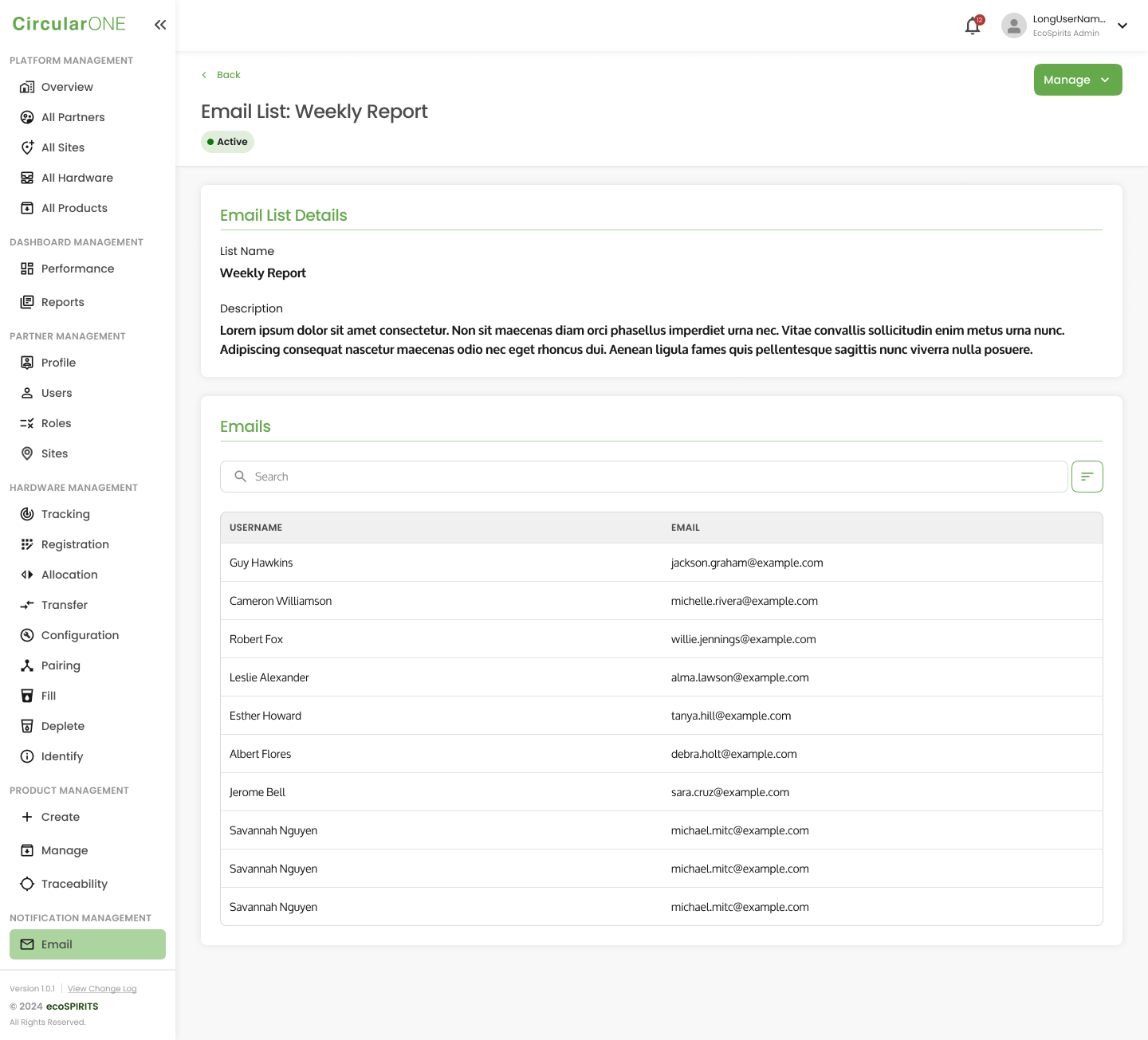
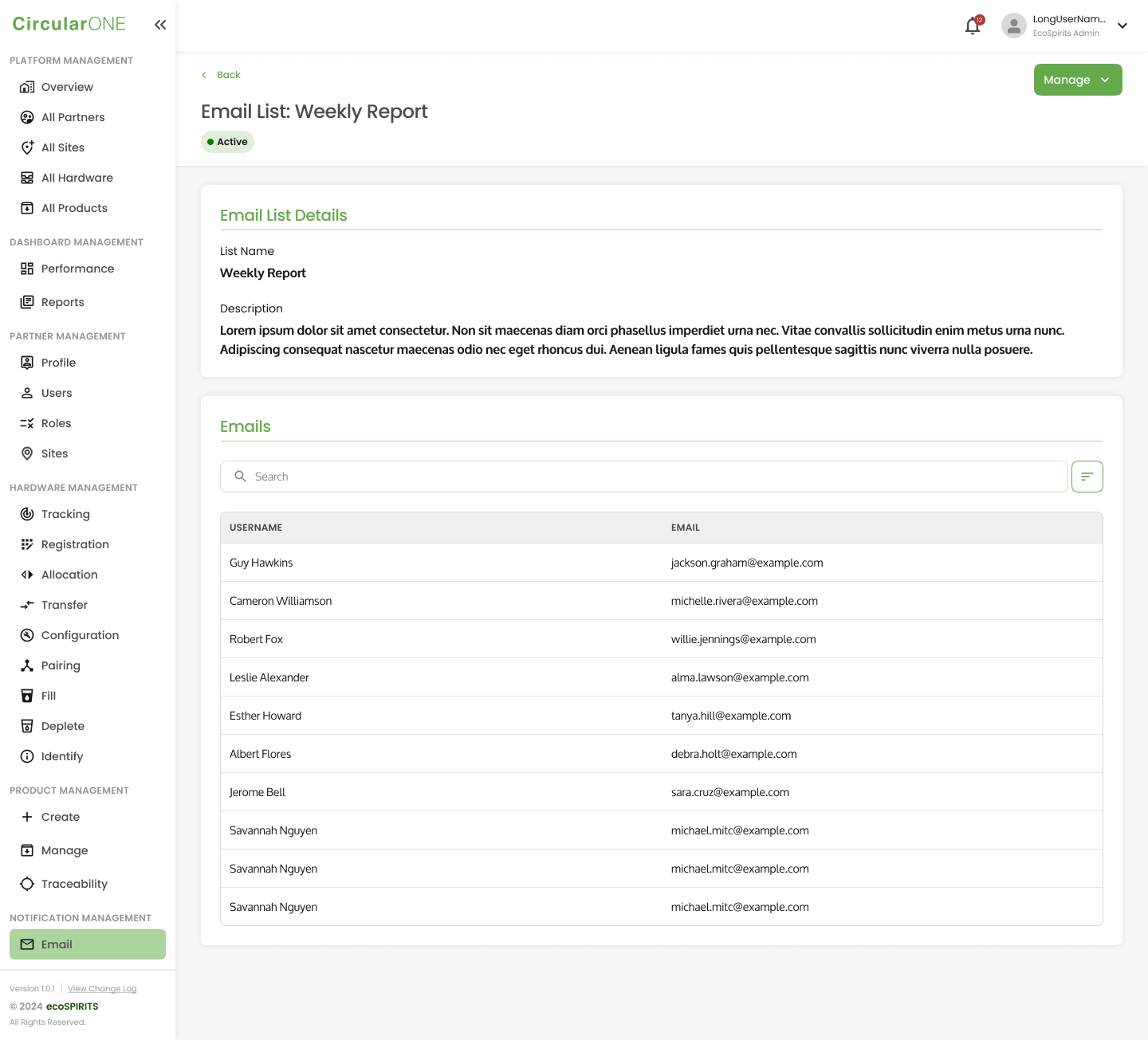
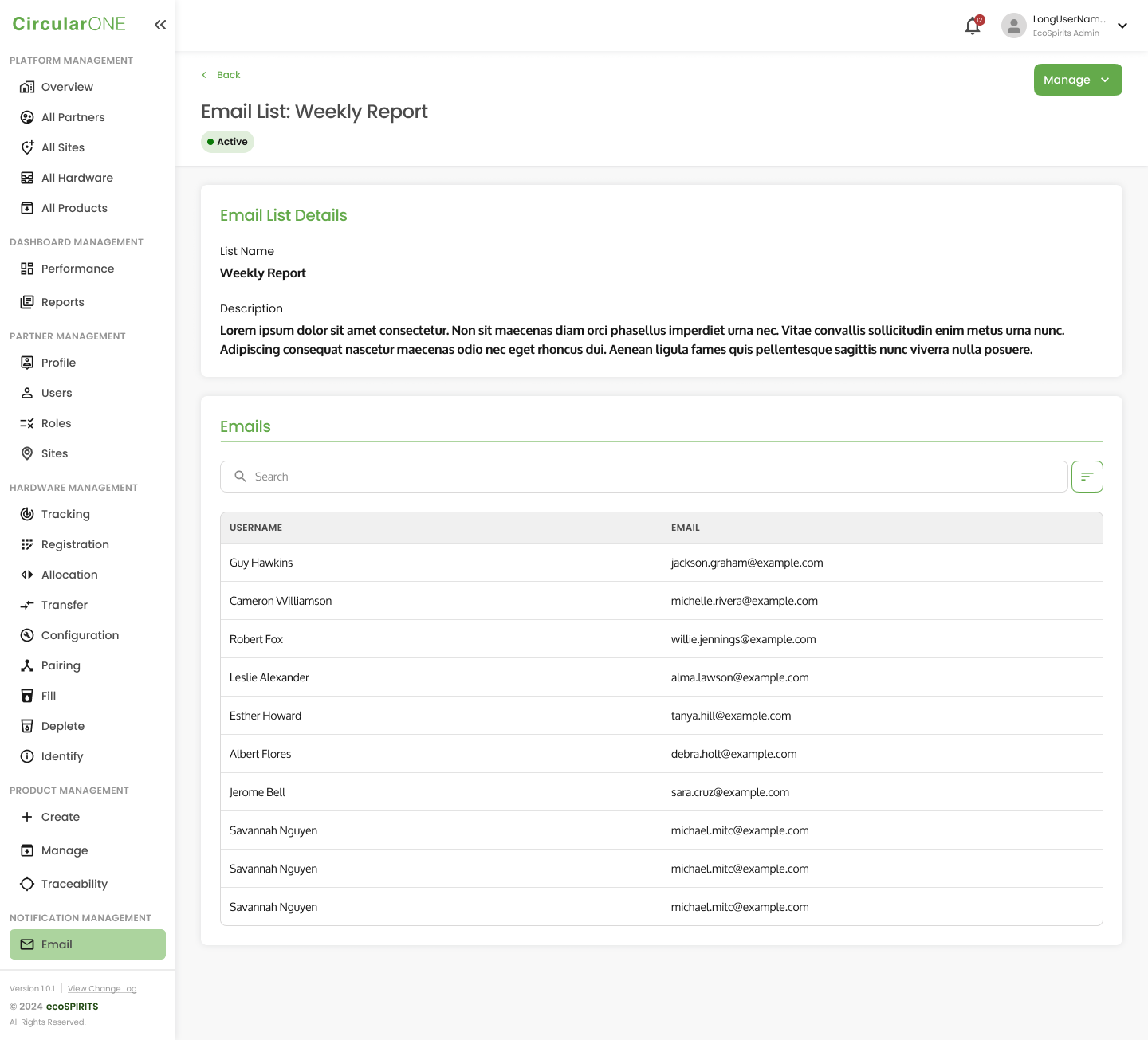
2 | Select the Email List to view a detailed summary of the email list | |
| ||
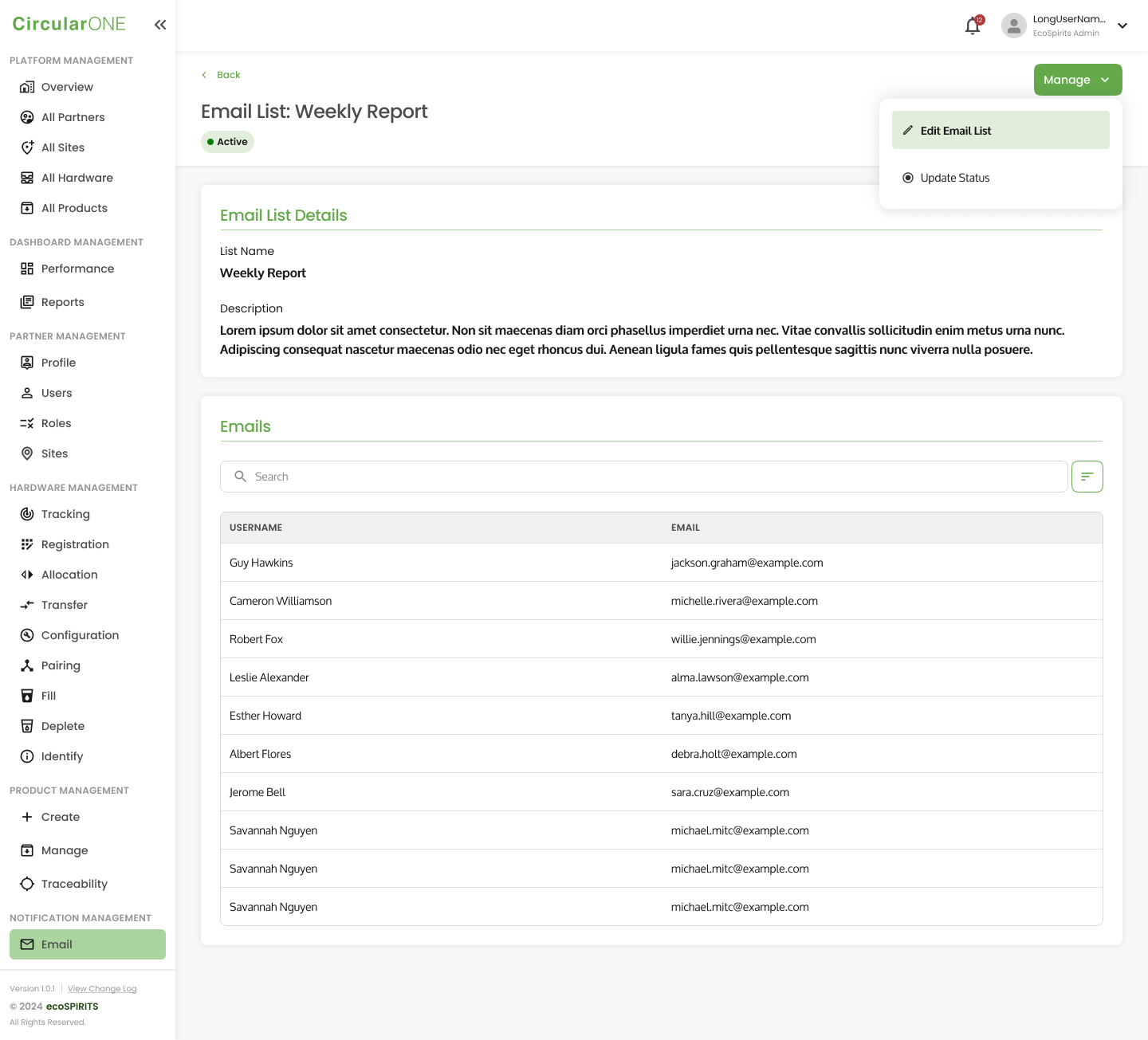
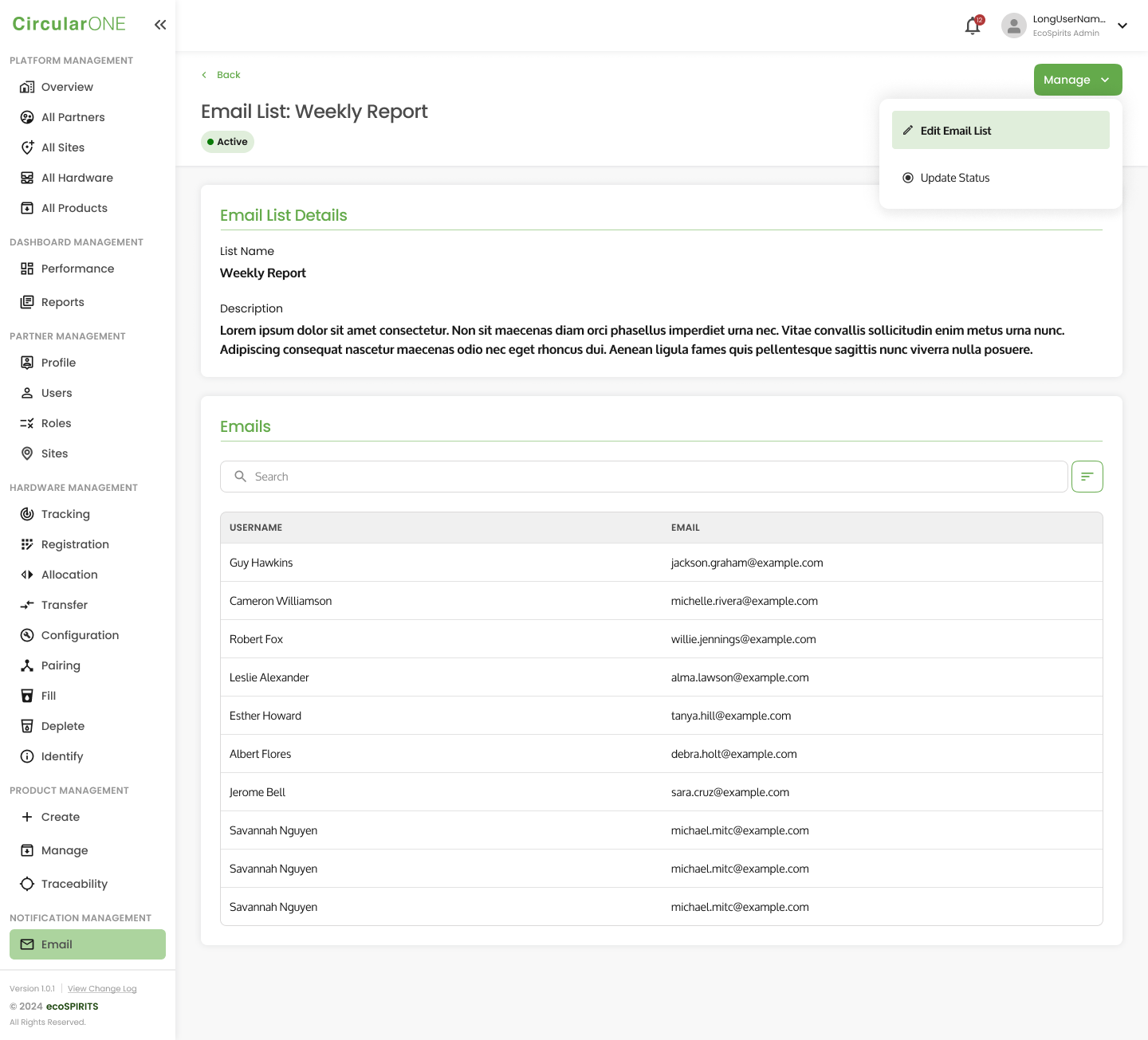
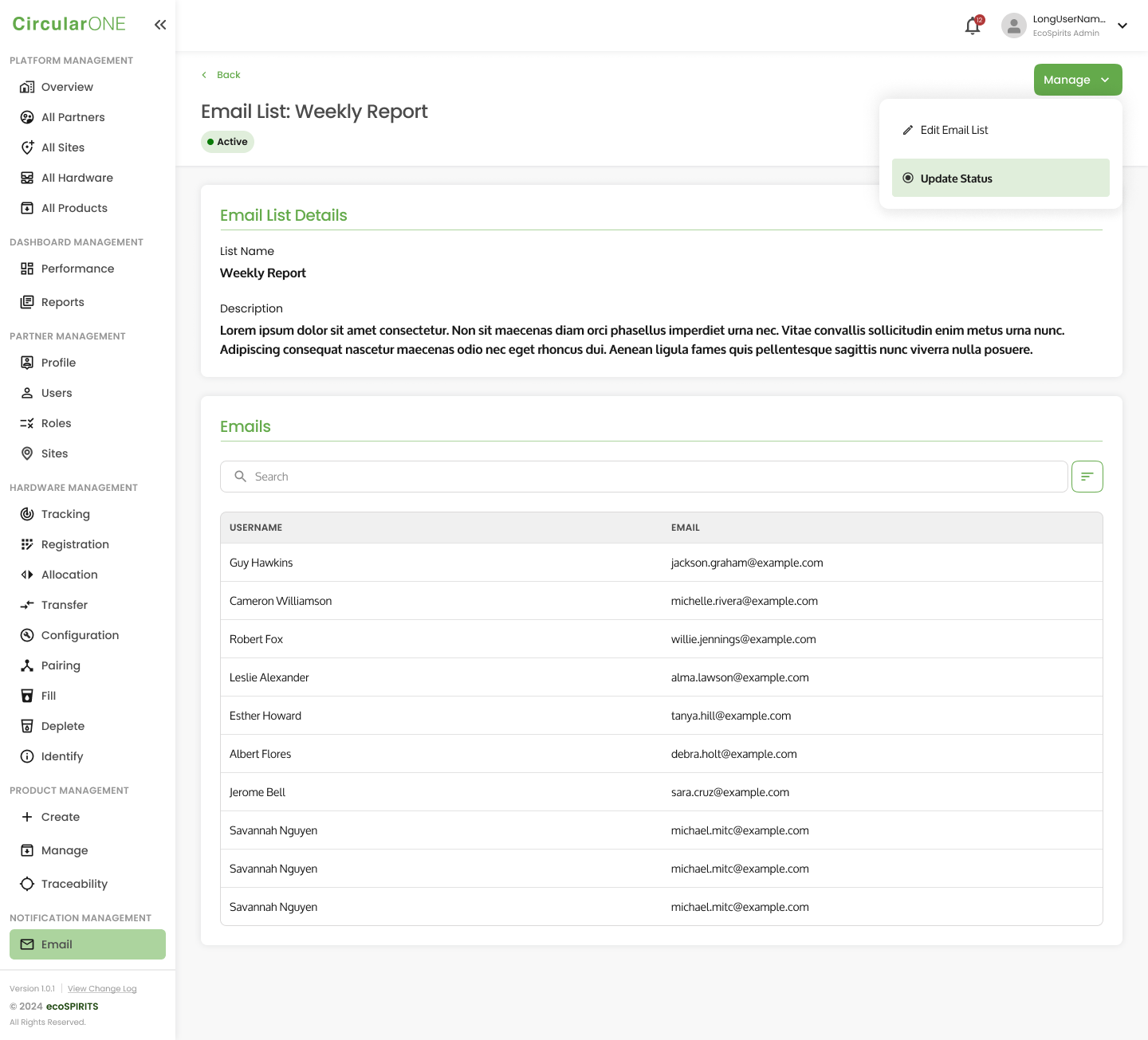
3 | Select ‘Manage’ and click ‘Edit Email List’ | |
| ||
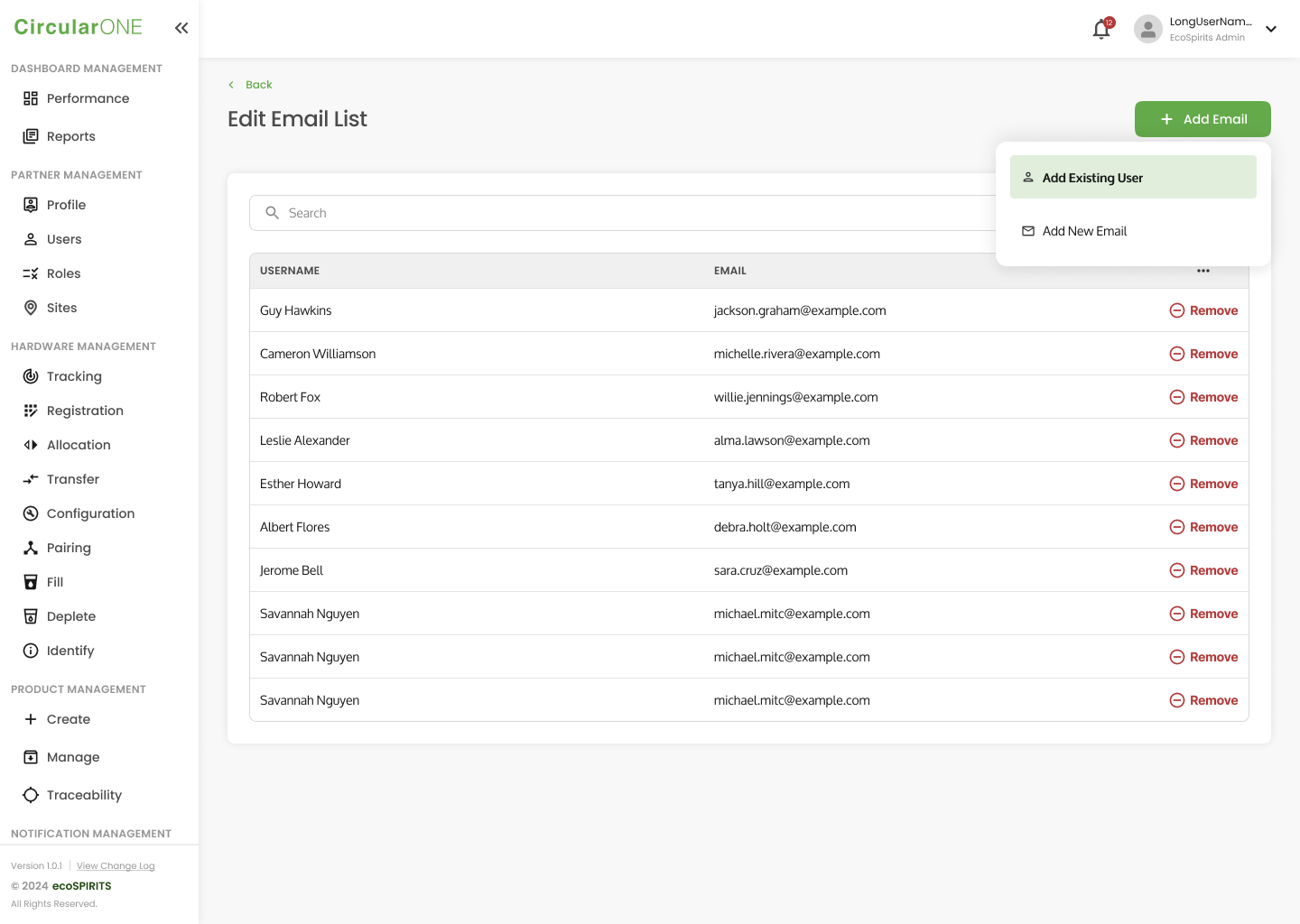
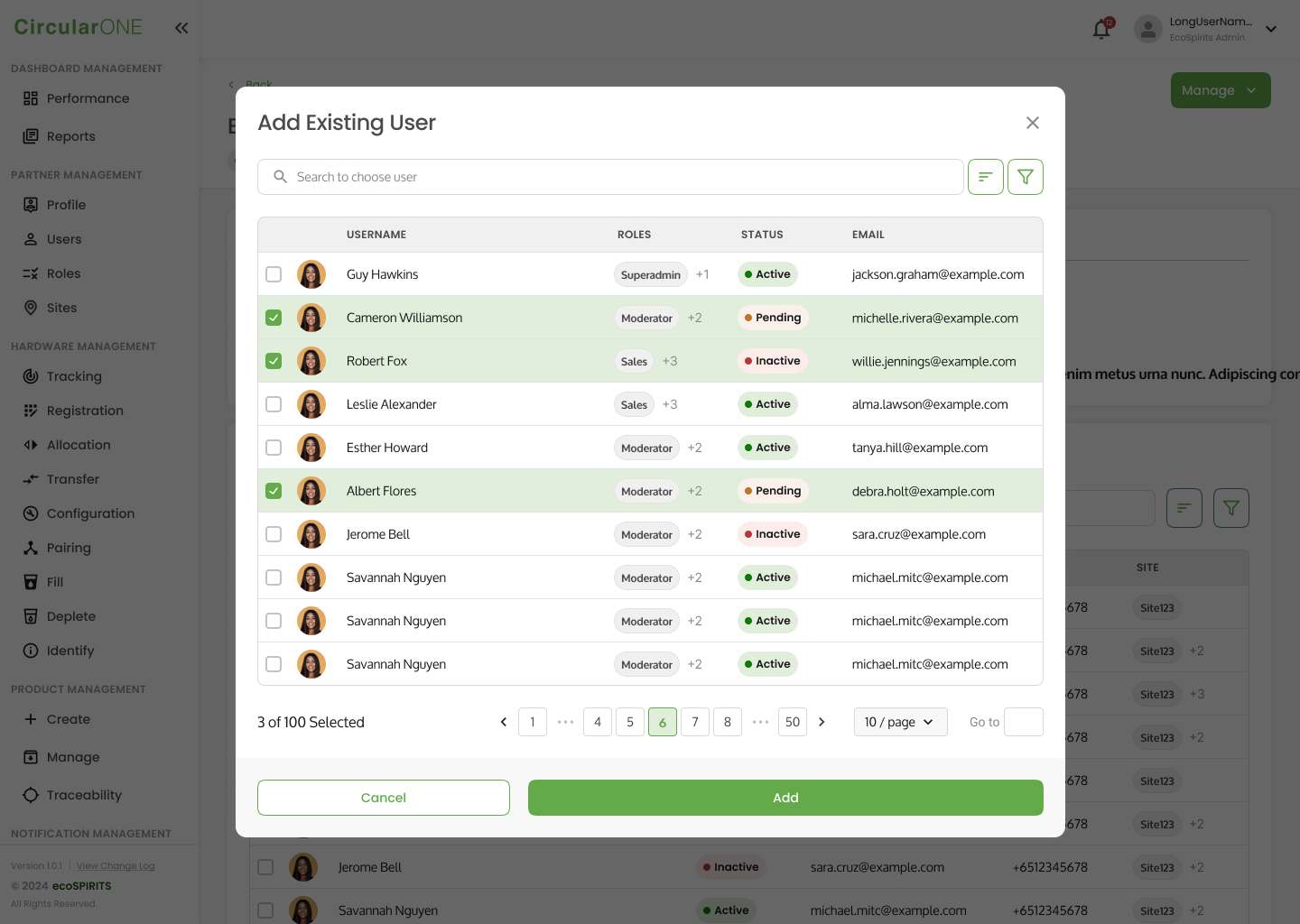
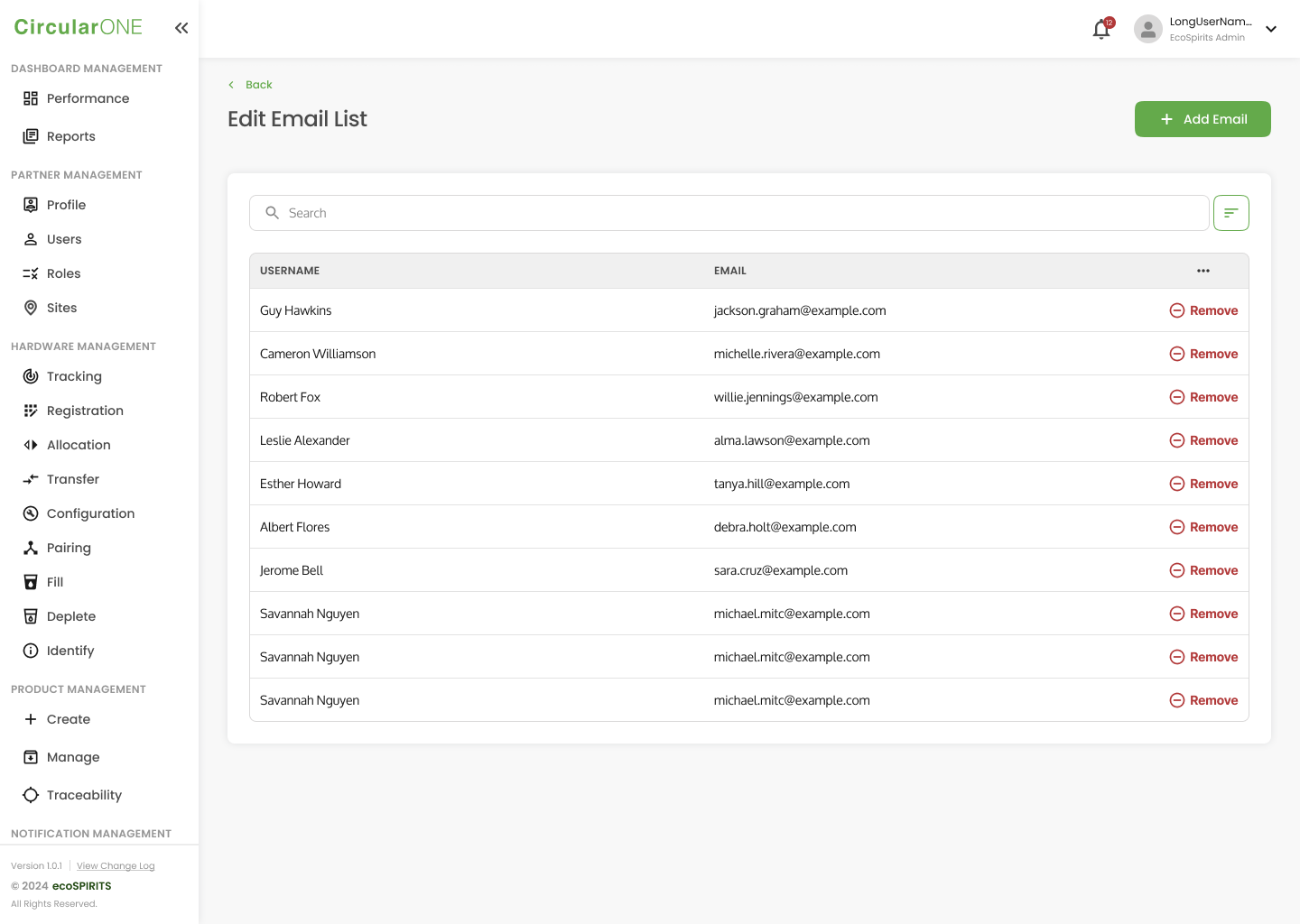
4 | Select ‘Add Email’ and click ‘Add Existing User’ | |
| ||
5 | Select the users which you would like to add to the emailing list and click ‘Add’ to proceed | |
| ||
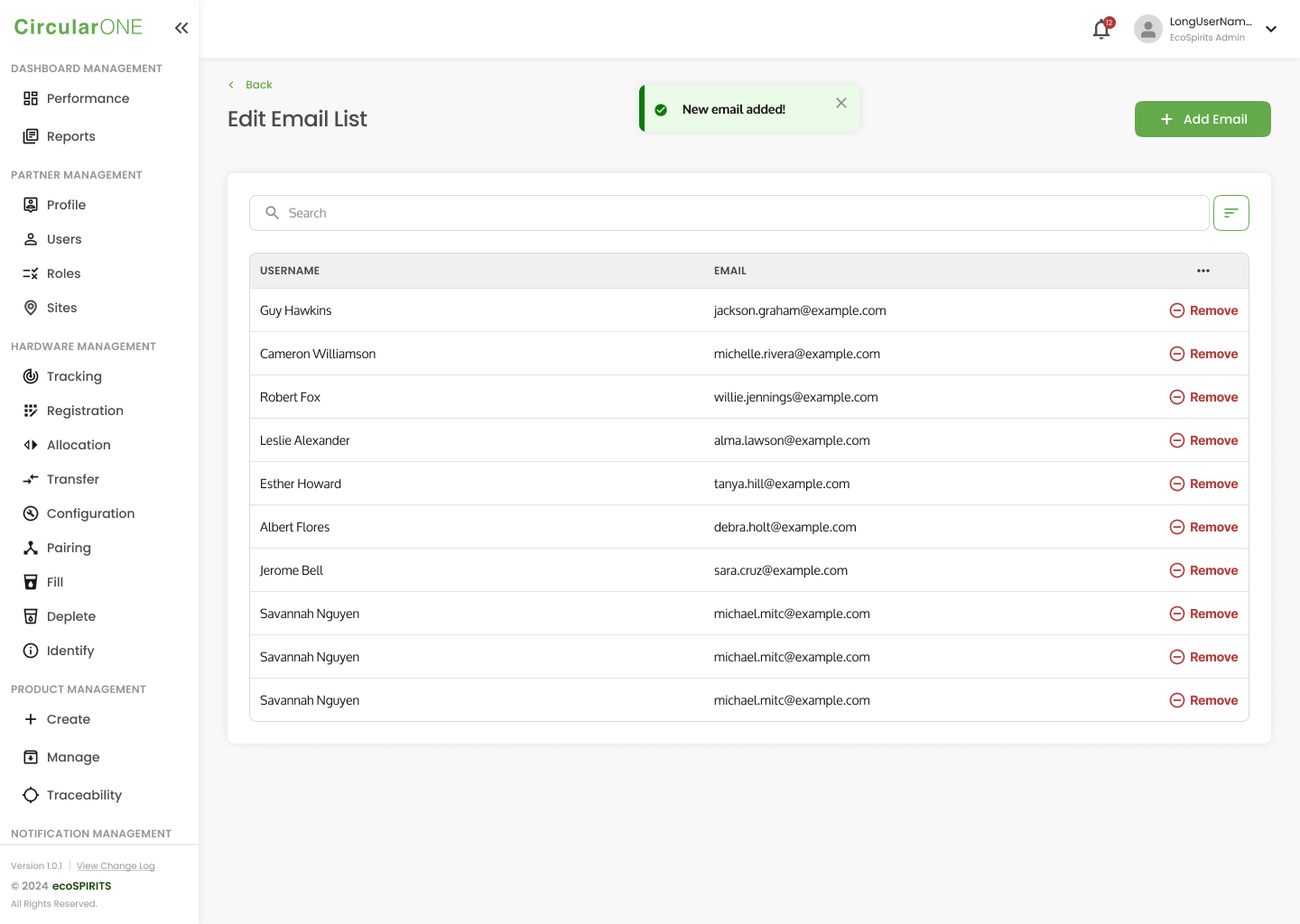
6 | If successful, you will be redirected back to the view the summary of the users under the Email List | |
| ||
Add Existing Users via Email to an Email List
To edit an email list to include more users via email, you can:
Steps | ||
|---|---|---|
1 | Head to ‘Email’ under Notification Management | |
| ||
2 | Select the Email List to view a detailed summary of the email list | |
| ||
3 | Select ‘Manage’ and click ‘Edit Email List’ | |
| ||
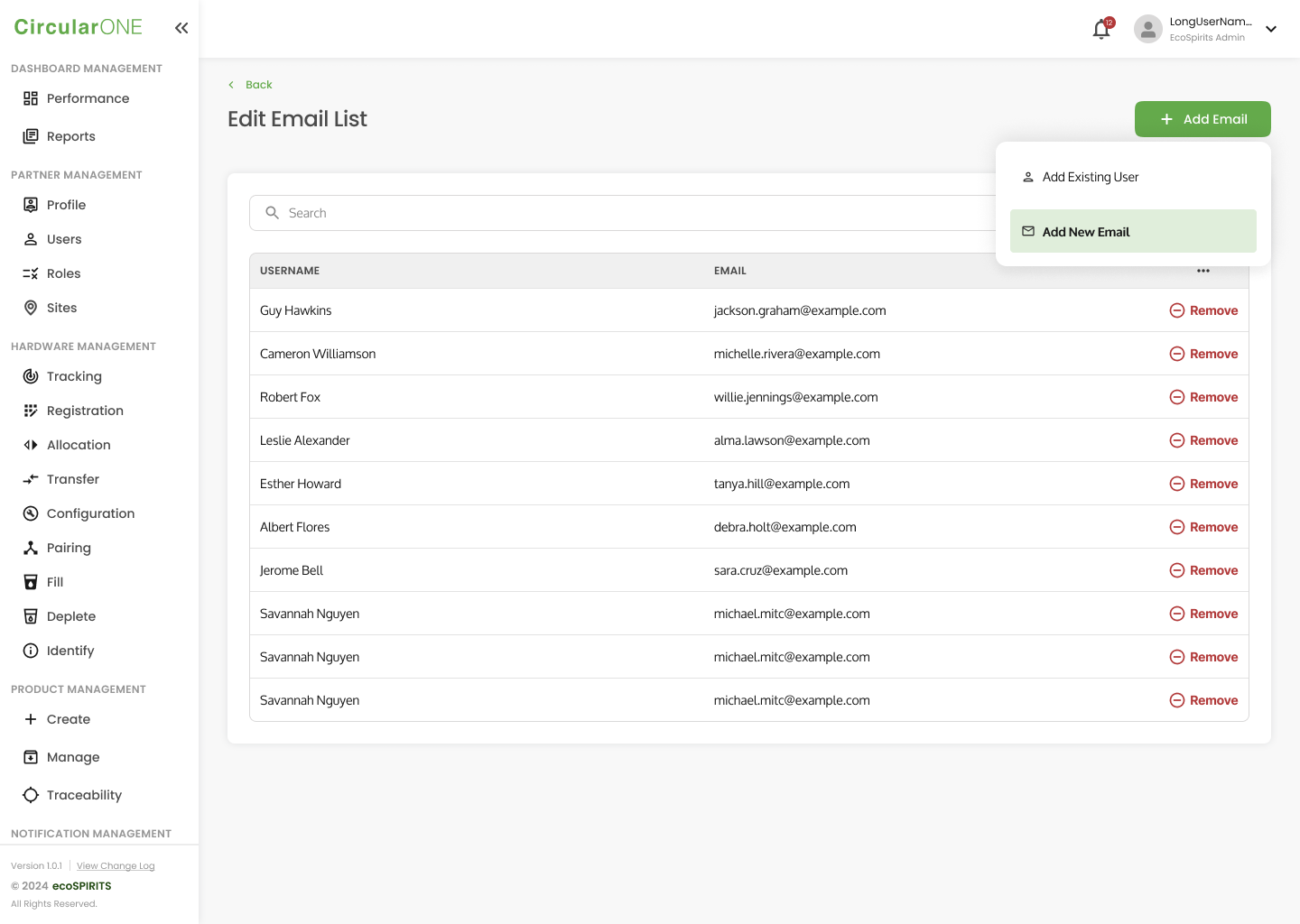
4 | Select ‘Add Email’ and click ‘Add New Email’ | |
| ||
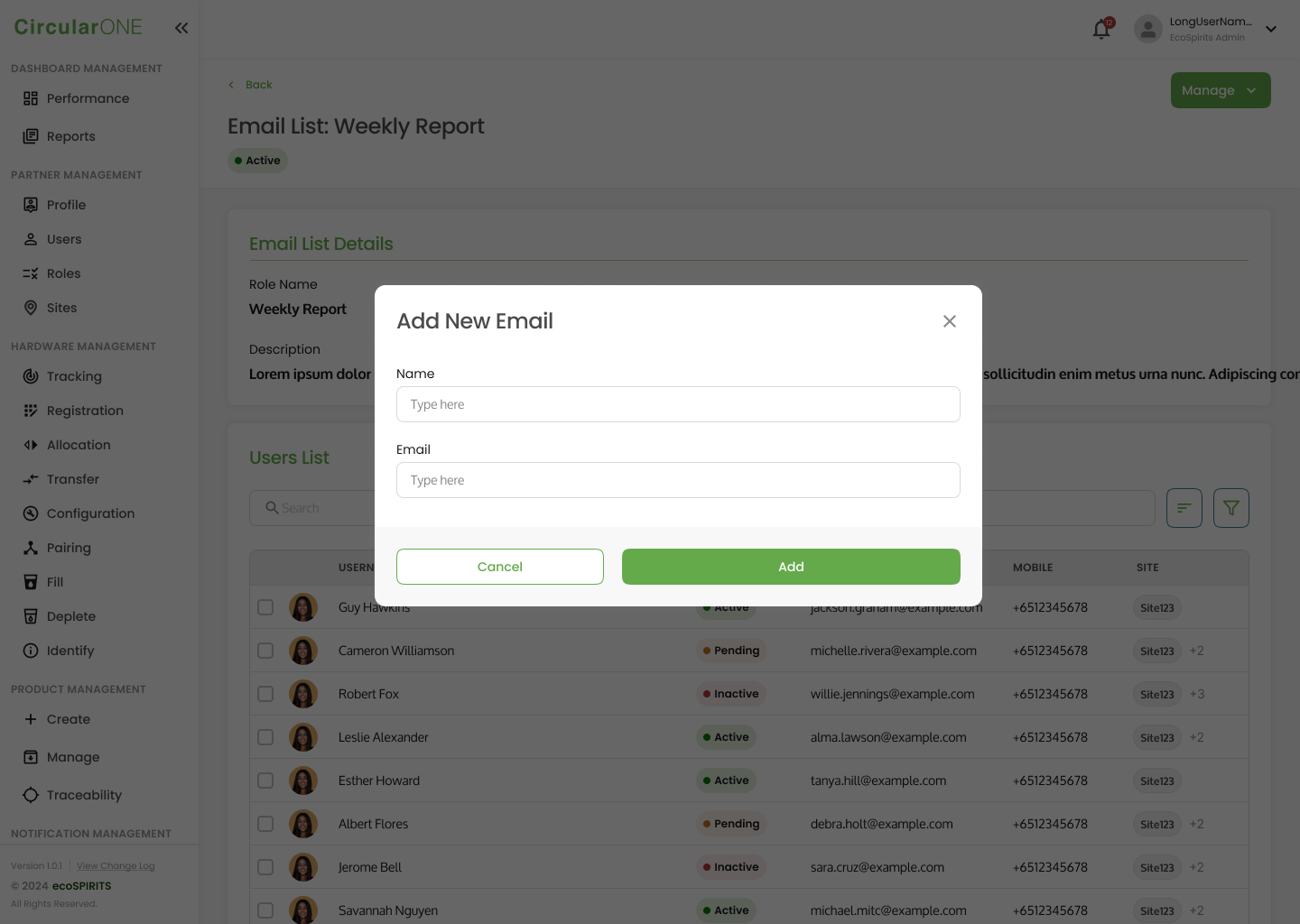
5 | Type the name and email of the user that you would like to add to the list. Once you have filled in the details, select ‘Add’. | |
| ||
6 | If successful, you will be redirected back to the view the summary of the users under the Email List | |
| ||
Remove Existing Users within Partnership to an Email List
To remove existing users from an Email List, you can:
Steps | ||
|---|---|---|
1 | Head to ‘Email’ under Notification Management | |
| ||
2 | Select the Email List to view a detailed summary of the email list | |
| ||
3 | Select ‘Manage’ and click ‘Edit Email List’ | |
| ||
4 | Select ‘Remove’ for the specific user you would like to remove from the email list | |
| ||
5 | Confirm that you will remove the user from the list | |
6 | If successful, you will be redirected back to the view the summary of the users under the Email List | |
Update Status of Email List
To update status of an email list, you can:
Steps | ||
|---|---|---|
1 | Head to ‘Email’ under Notification Management | |
| ||
2 | Select the Email List to view a detailed summary of the email list | |
| ||
3 | Select ‘Manage’ and click ‘Update Status’ | |
| ||
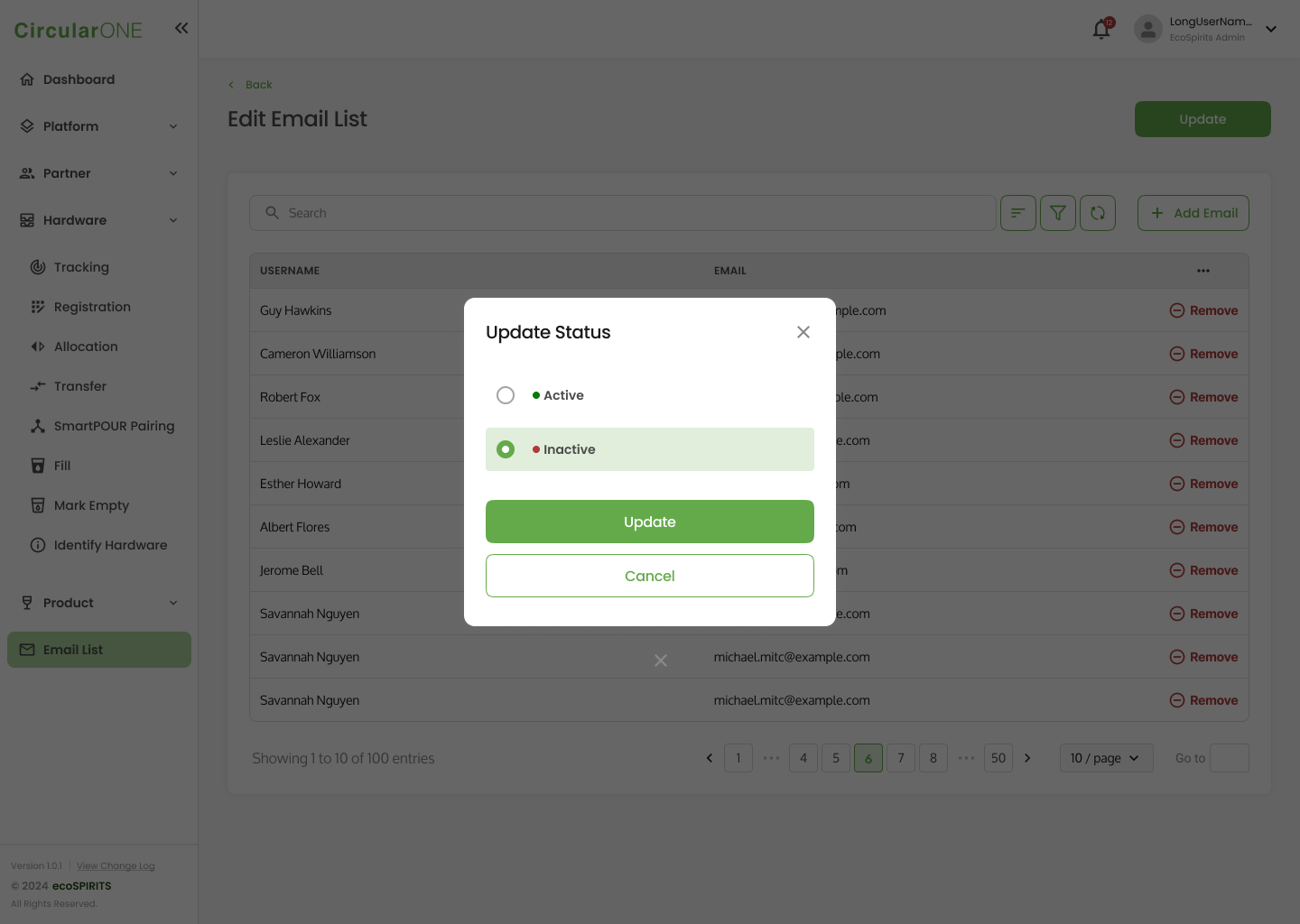
4 | Select the new status for the emailing list and click ‘Update’ | |
| ||
5 | If successful, you will be redirected back to the Email List Detail page | |
No comments to display
No comments to display