
Partnership User Management
Feature Availability
Available on Web/Mobile Browser only.
Introduction
Partner Administrator or Partner User with permissions can create or modify user accounts within their partnership. Users will learn how to manage users within their partnership to help facilitate the overall operations of your business.
Create A New User
To create a new user, you can:
Steps | ||
|---|---|---|
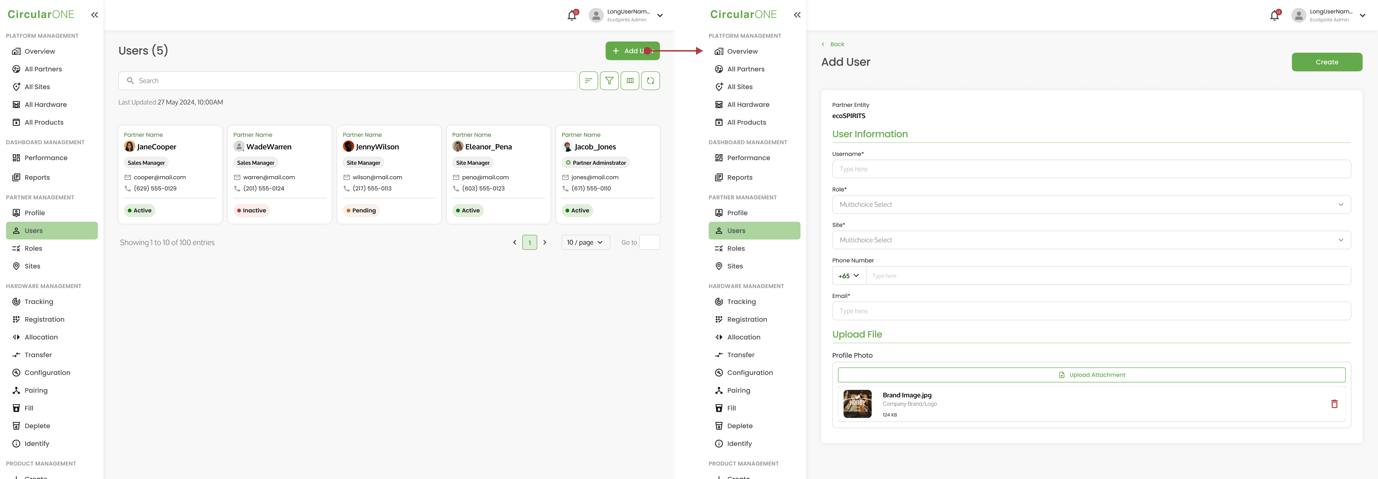
1 | Head to ‘Users’ under Partnership Profile | |
2 | Select ‘Add User’ | |
| ||
3 | Fill in the necessary information required for the new user | |
4 | Select ‘Create’ once all the details have been filled | |
5 | If successful, you will be redirected back to the User List | |
Edit User Profile
To edit a user, you can:
Steps | ||
|---|---|---|
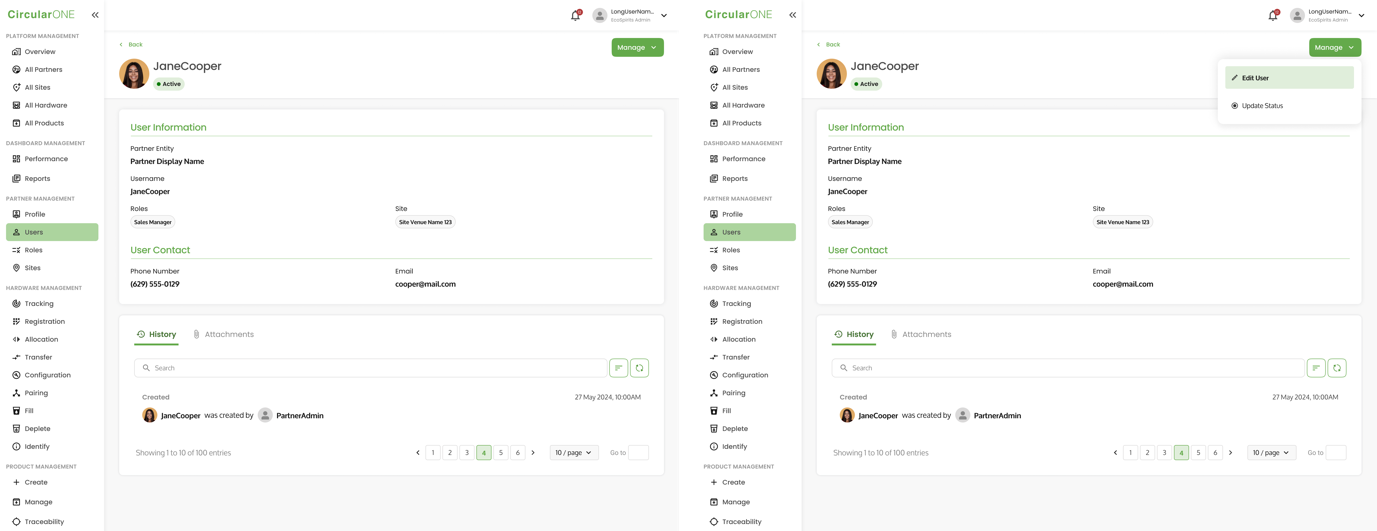
1 | Head to ‘Users’ under Partnership Profile | |
2 | Select a user profile | |
3 | Select ‘Manage’ and click ‘Edit User’ | |
| ||
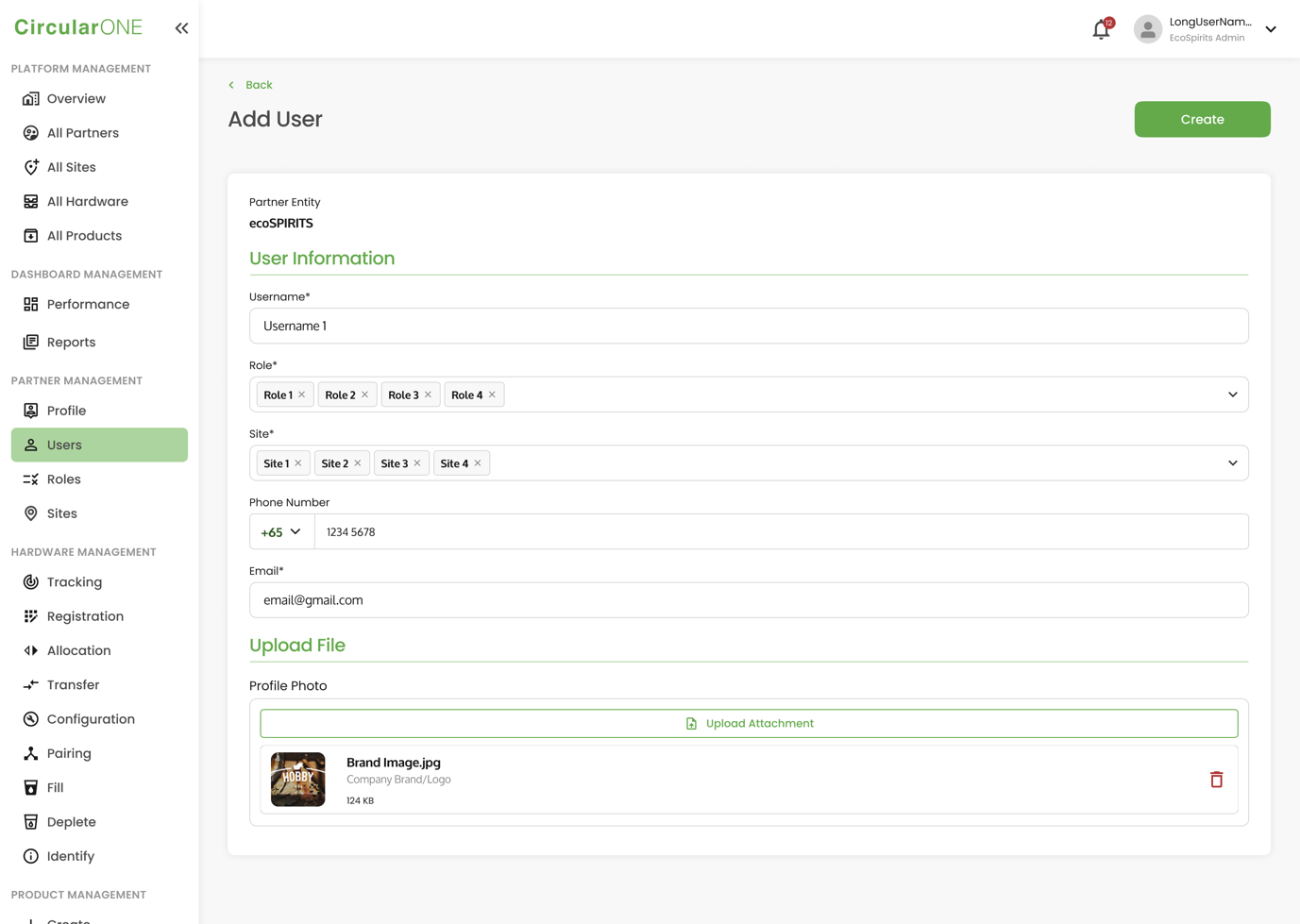
4 | Edit the relevant fields that need to be changed for the specific user | |
| ||
5 | If successful, you will be redirected back to User Profile | |
Update User Status
To update user status, you can:
Steps | ||
|---|---|---|
1 | Head to ‘User’ under Partner Management | |
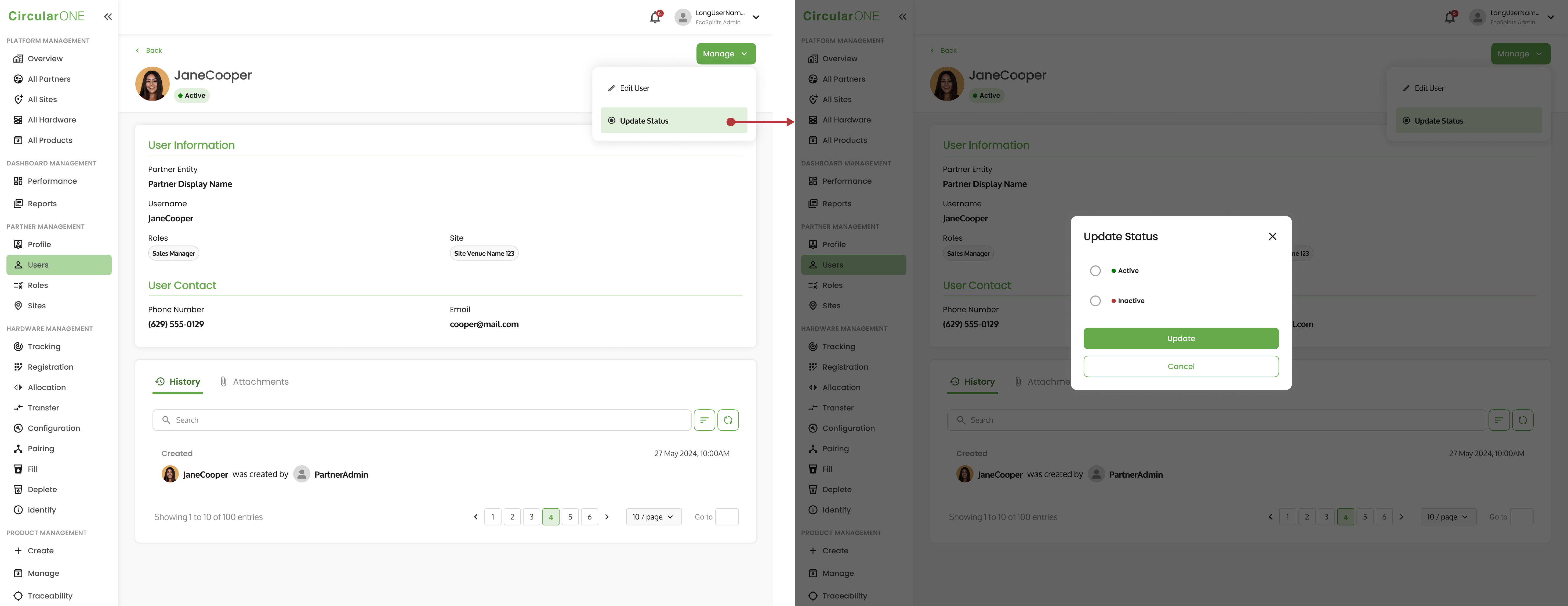
2 | Select ‘Manage’ and click ‘Update Status’ | |
| ||
3 | Change the status from ‘Active’ to ‘Inactive’ and select ‘Update’ | |
4 | User status will change from ‘Active’ to ‘Inactive’ | |
No comments to display
No comments to display