
Reports (via Existing Module)
Feature Availability
Available on both Web/Mobile Browser.
Note
Data displayed in this module includes:
-hardware that you are currently in possession(hardware allocated to a site within your partnership).
Introduction
Reports (via Existing Module) is only visible to users that have access to ‘Tracking’, ‘Allocation’, ‘Fill’, and ‘Deplete’ pages respectively. Viewable data is restricted to the sites that users have access to. You will be able to download reports related to your hardware that you own and are currently in possession of through this feature.
Accessing via an existing Module
Warning!
This feature is different from the ‘Report’ function that is found under ‘Dashboard Management’. You will not be able to see the ‘Report’ feature unless you are a Partner Administrator or a user that has been given access.
For modules that have the ‘Report’ function available, you will notice that there is a ‘Report’ button at the top right of the page.
Steps | ||
|---|---|---|
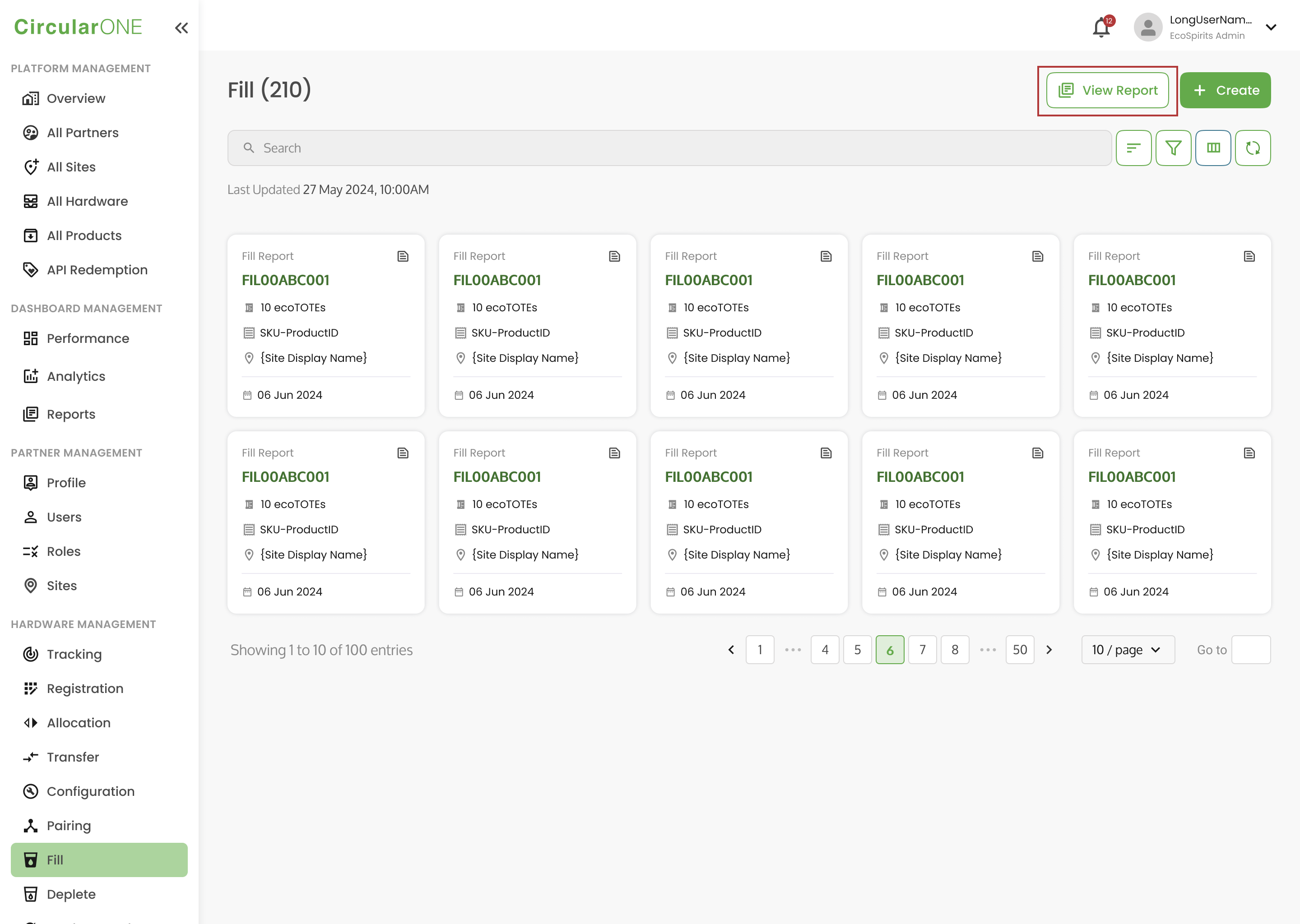
1 | For instance, on the ‘Fill’ page, users are able to select ‘View Report’ | |
| ||
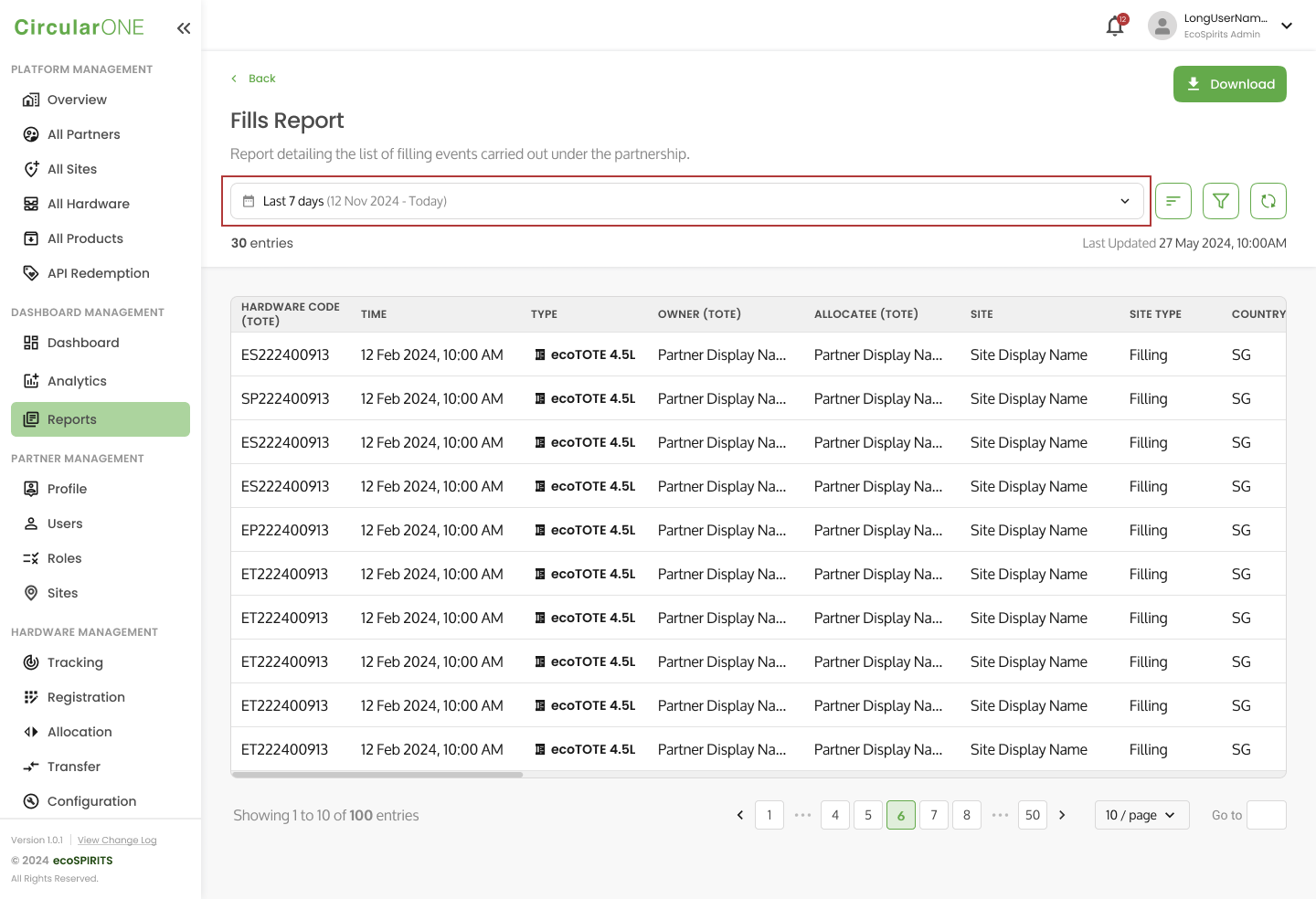
2 | They will be redirected to the Fills Report page, where they can see a summary of the fills that happened within their partnership. | |
3 | Once you view the detailed list of relevant data, you can choose the time period that you will like to view in detail by selecting the Time Period Filter (if applicable). | |
| ||
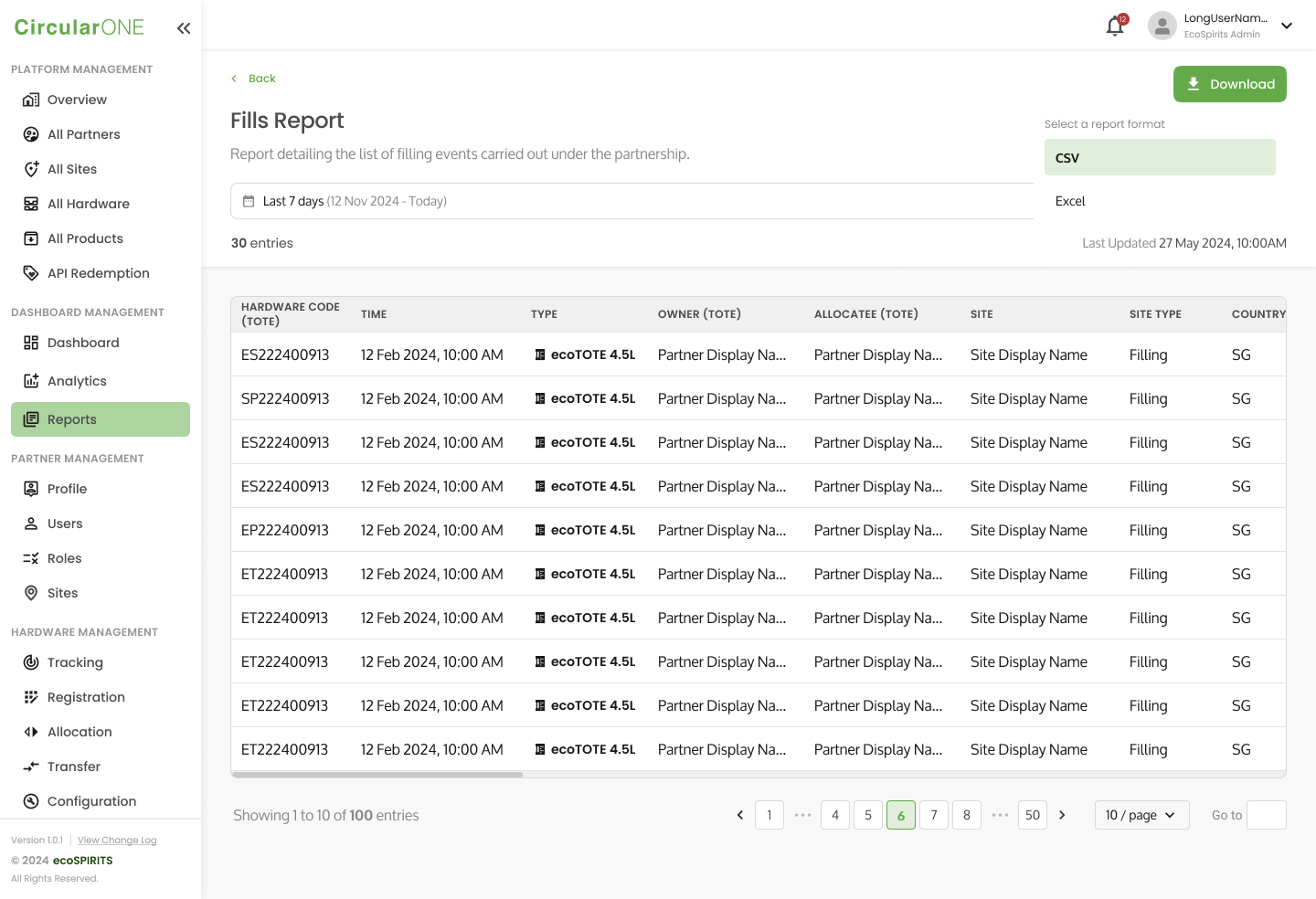
4 | To export the data, select ‘Download’. You will see a dropdown of the possible report formats that you can export the data to. Select your desired report format to download the data. | |
| ||
5 | If successful, the report will be downloaded on your device. | |
No comments to display
No comments to display