
Product Tracing
Feature Availability
Available on Web/Mobile Browser only.
Introduction
Users will learn how to conduct accurate product recall exercises. Product Tracing provides a detailed overview of the current volumes of products introduced into the platform and the existing volume that is still in circulation, enabling users to trace products throughout their lifecycle with precision. Users can then notify the partners directly to streamline communication and coordination during recall efforts.
Create A New Trace Report
To create a new trace report, you can:
Steps | ||
|---|---|---|
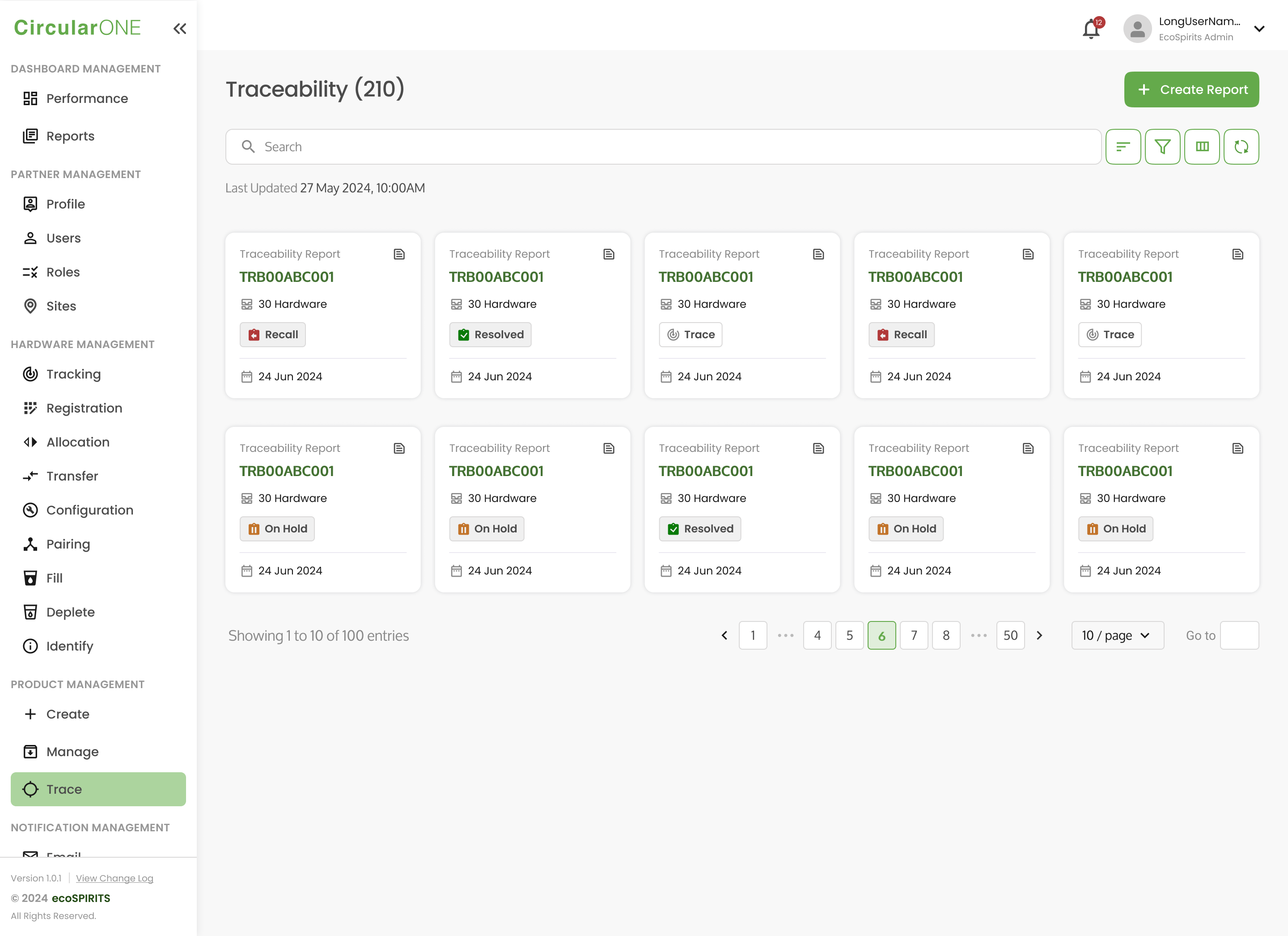
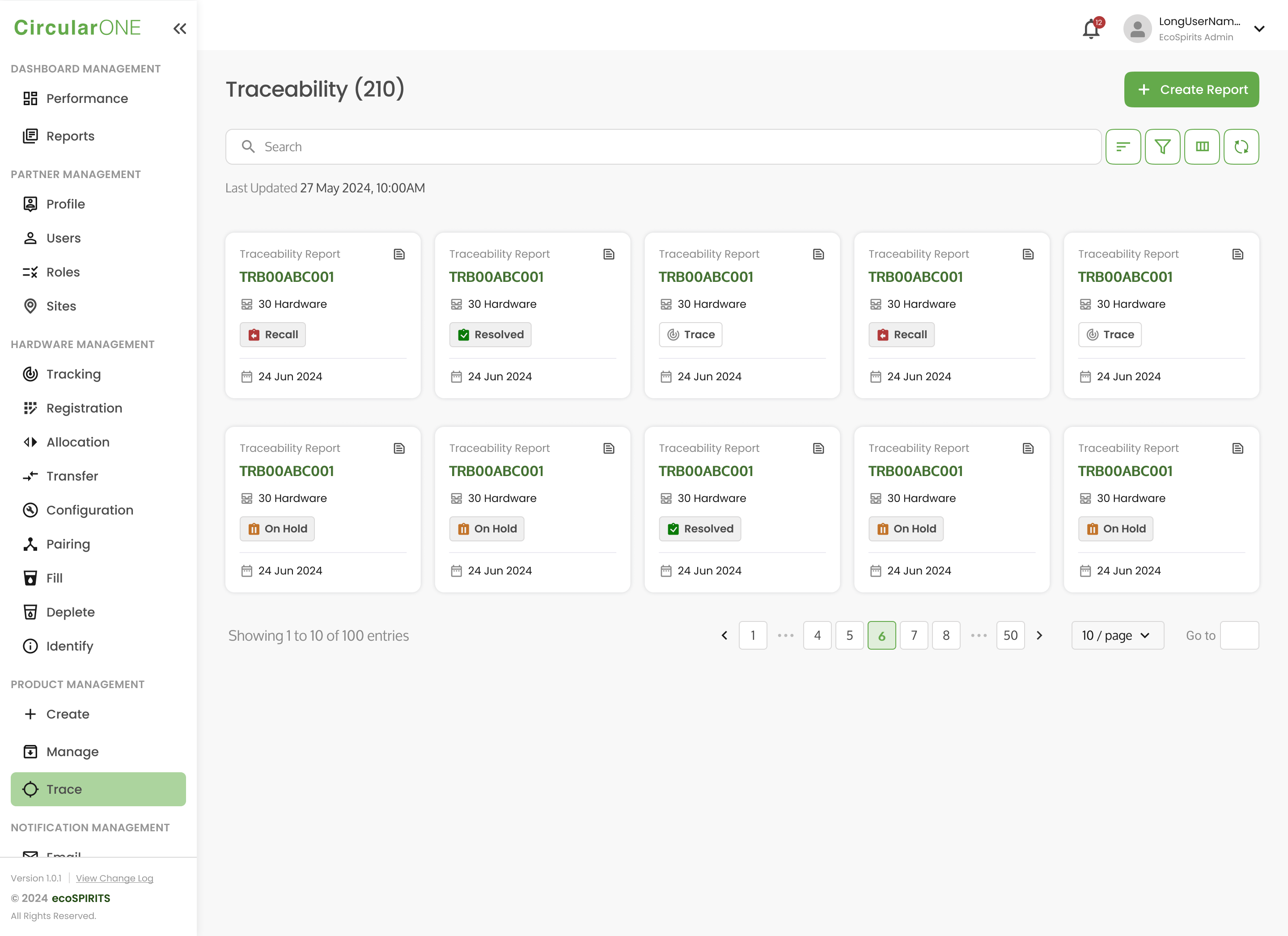
1 | Head to ‘Trace’ under Product Management | |
| ||
Select ‘Create Report’ | ||
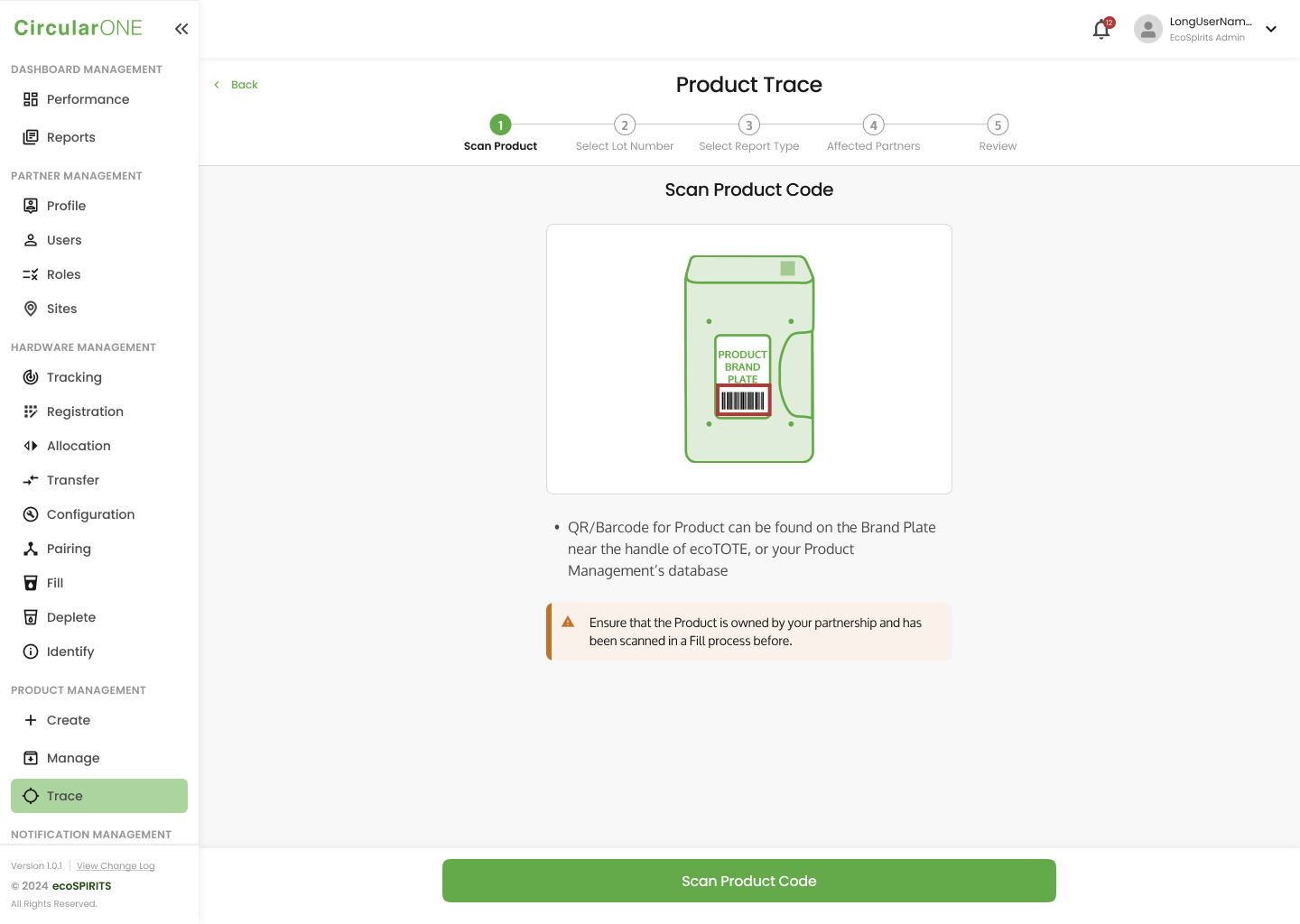
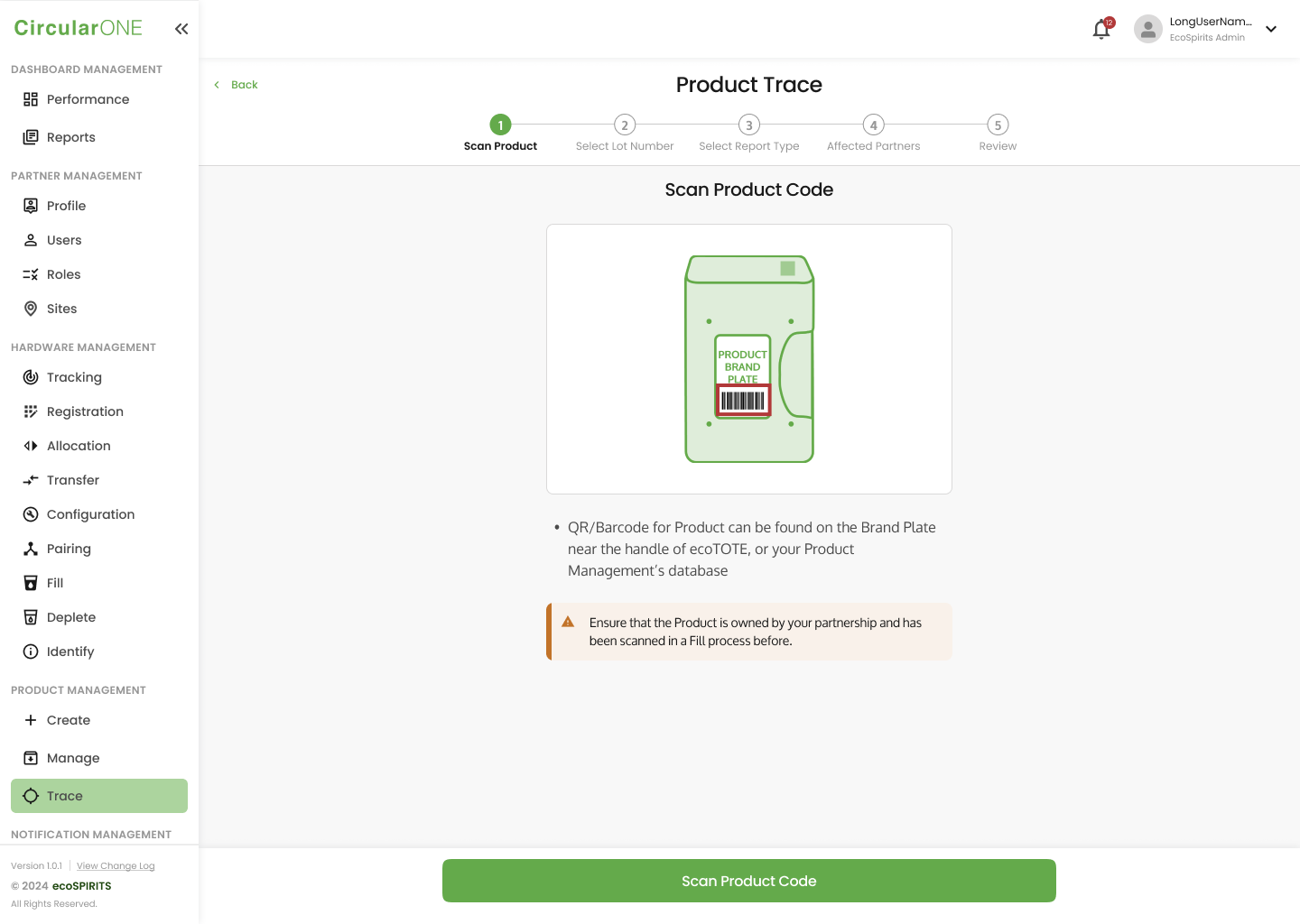
View the scanning instructions and select ‘Scan Product Code’ to proceed | ||
| ||
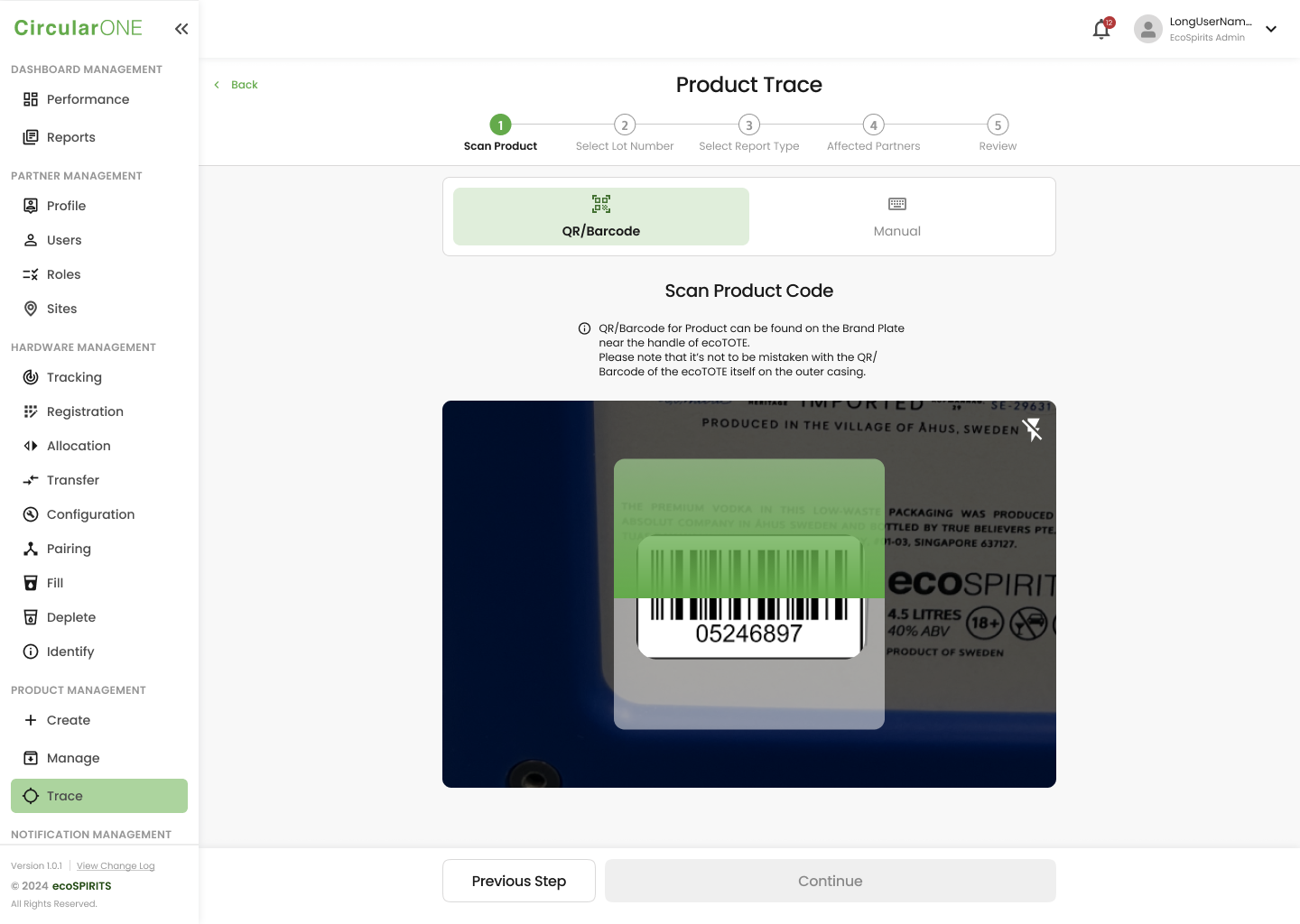
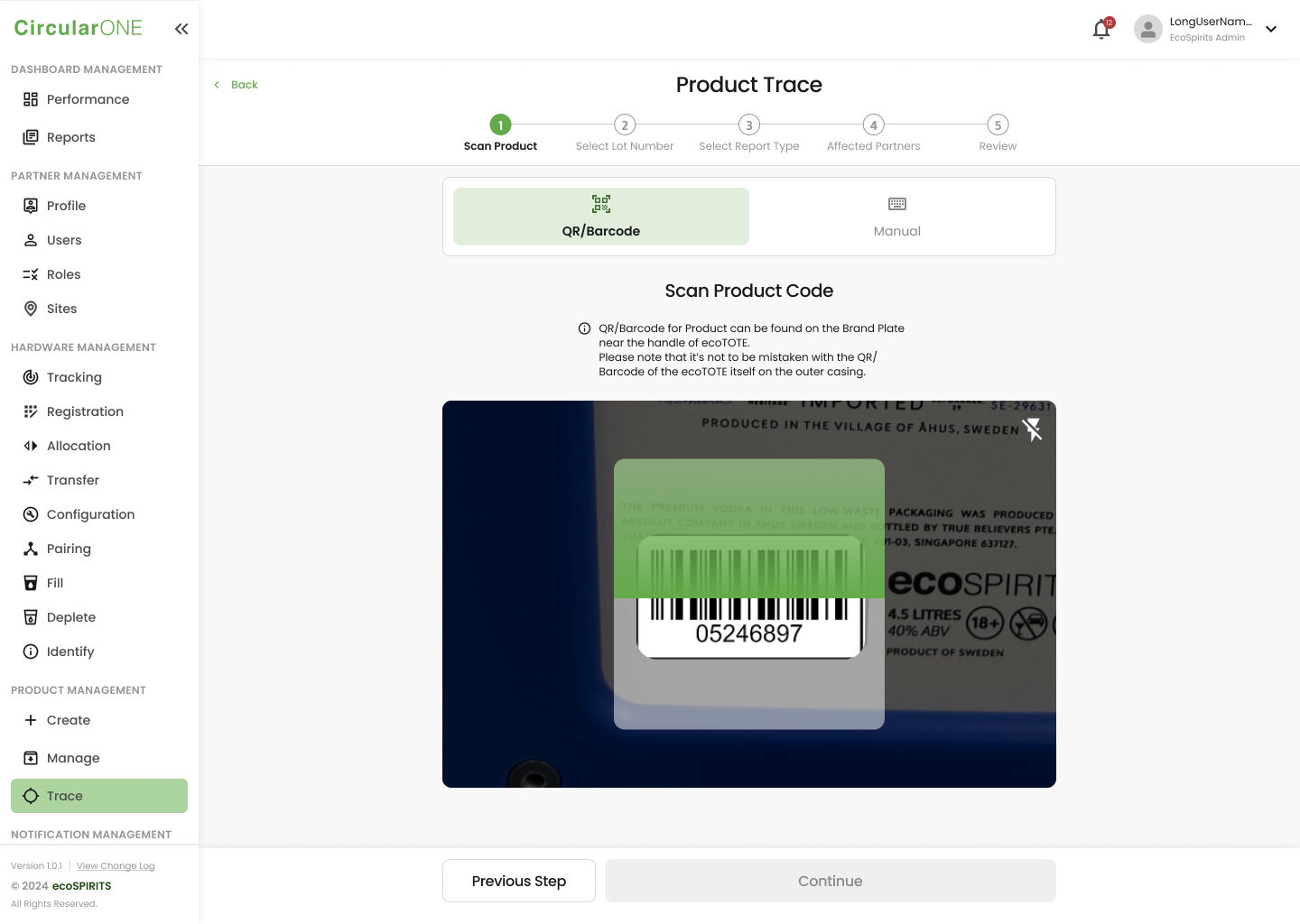
Scan the Product Code either by QR Code or Manual Input | ||
| ||
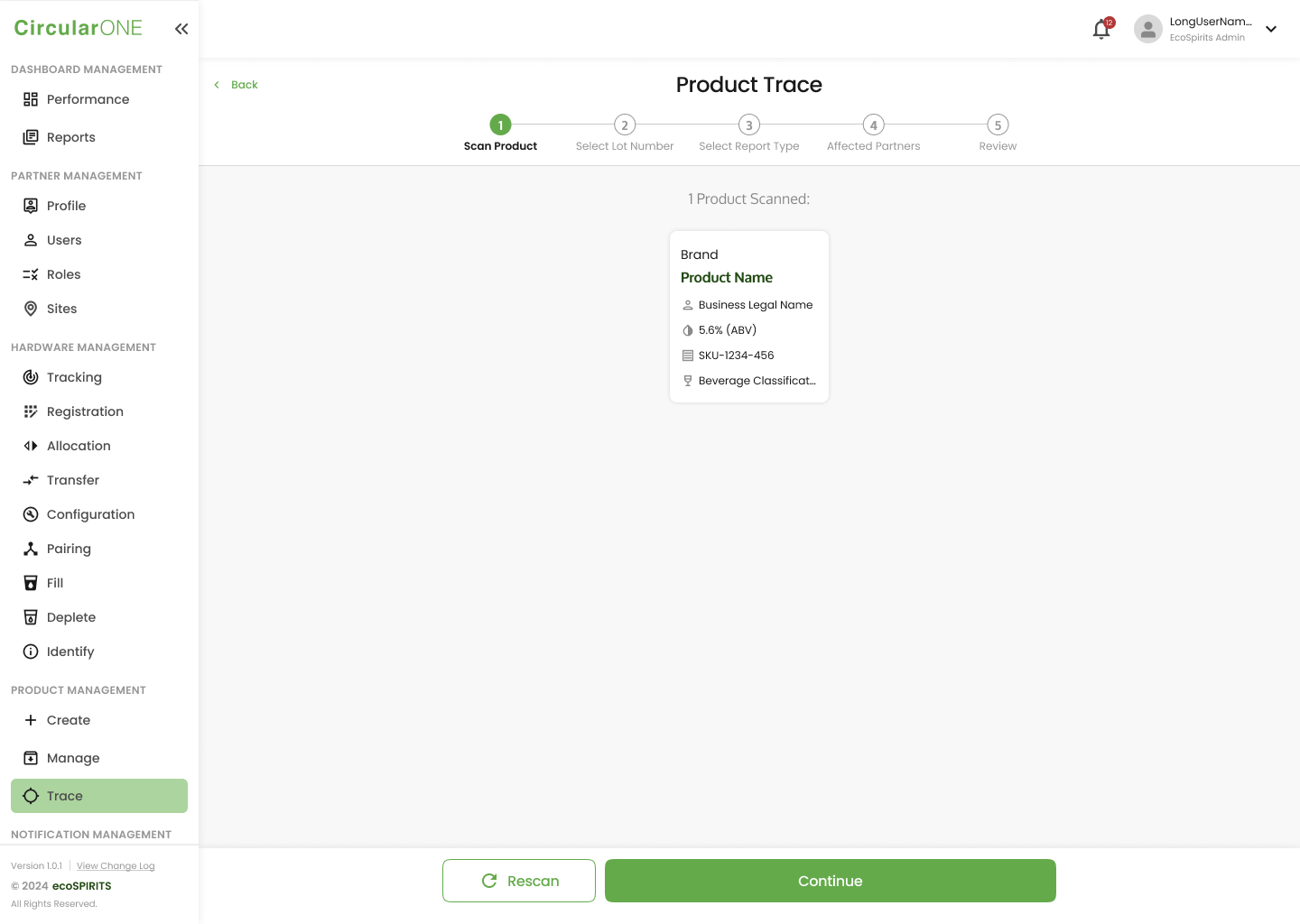
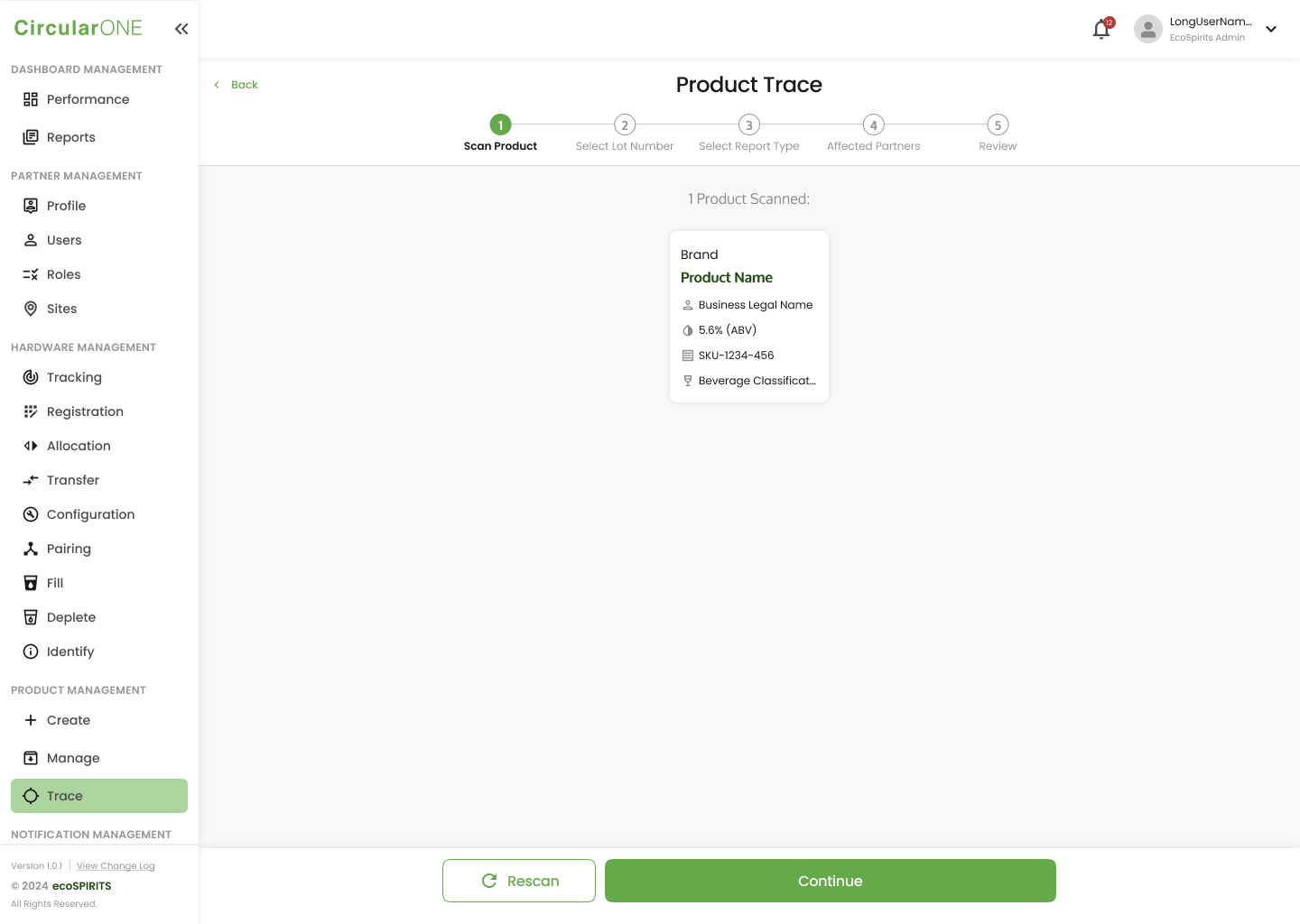
View the scanned product and select ‘Continue’ to proceed | ||
| ||
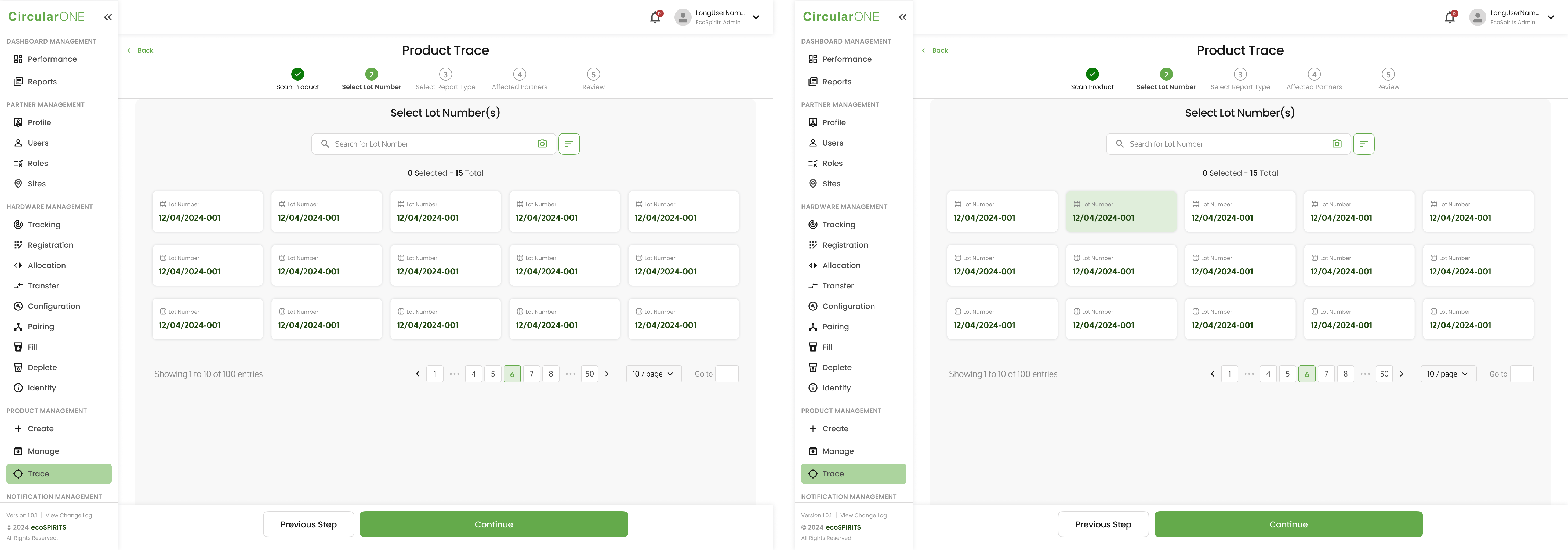
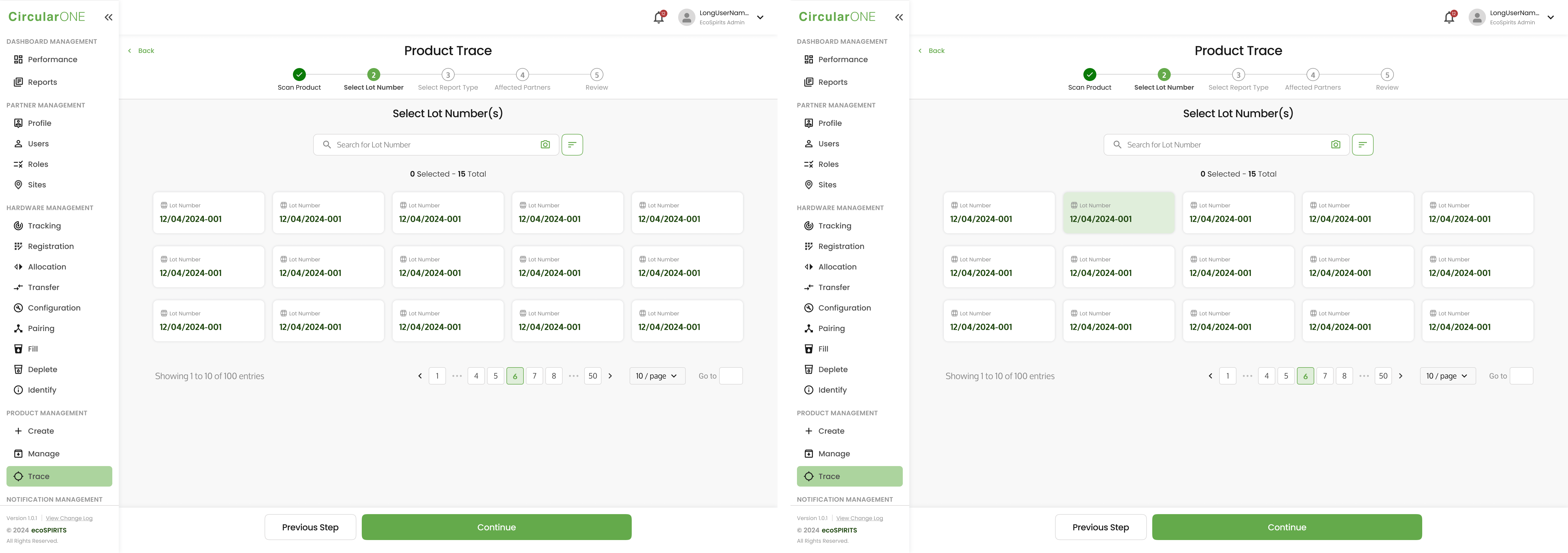
Select the Lot Number which you would like to trace and click ‘Continue’ | ||
| ||
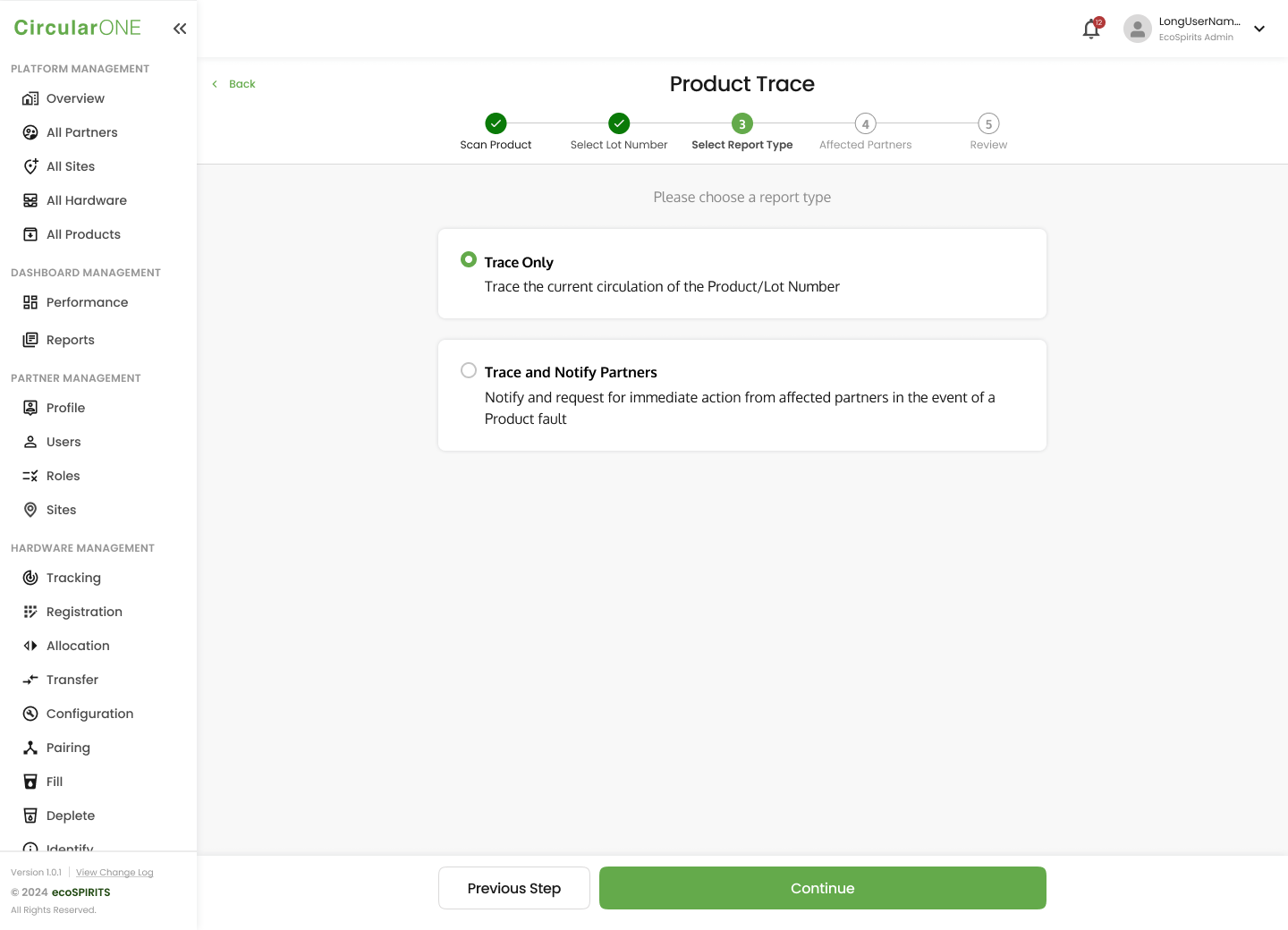
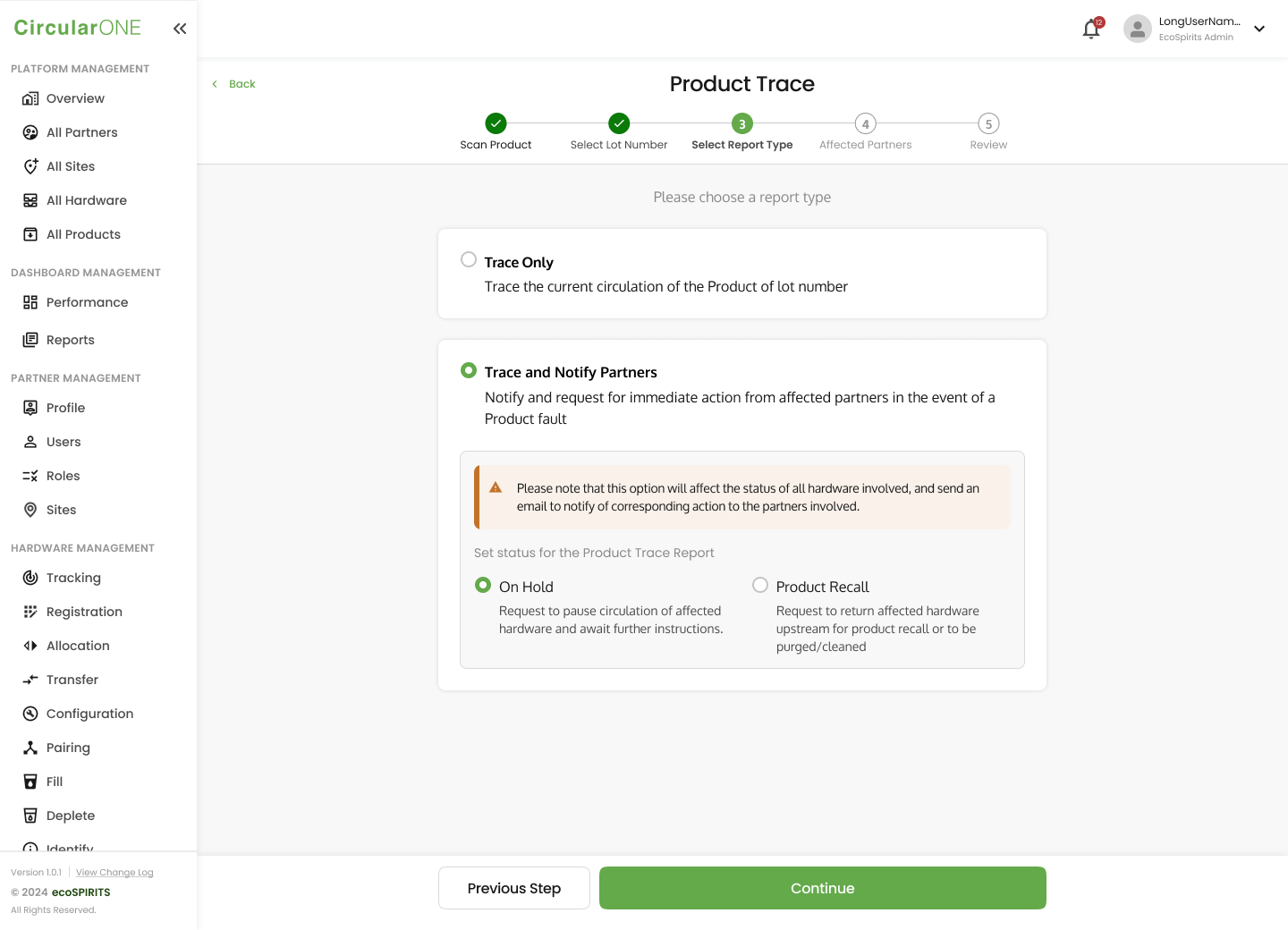
Select ‘Trace Only’ as the report type and click ‘Continue’ | ||
| ||
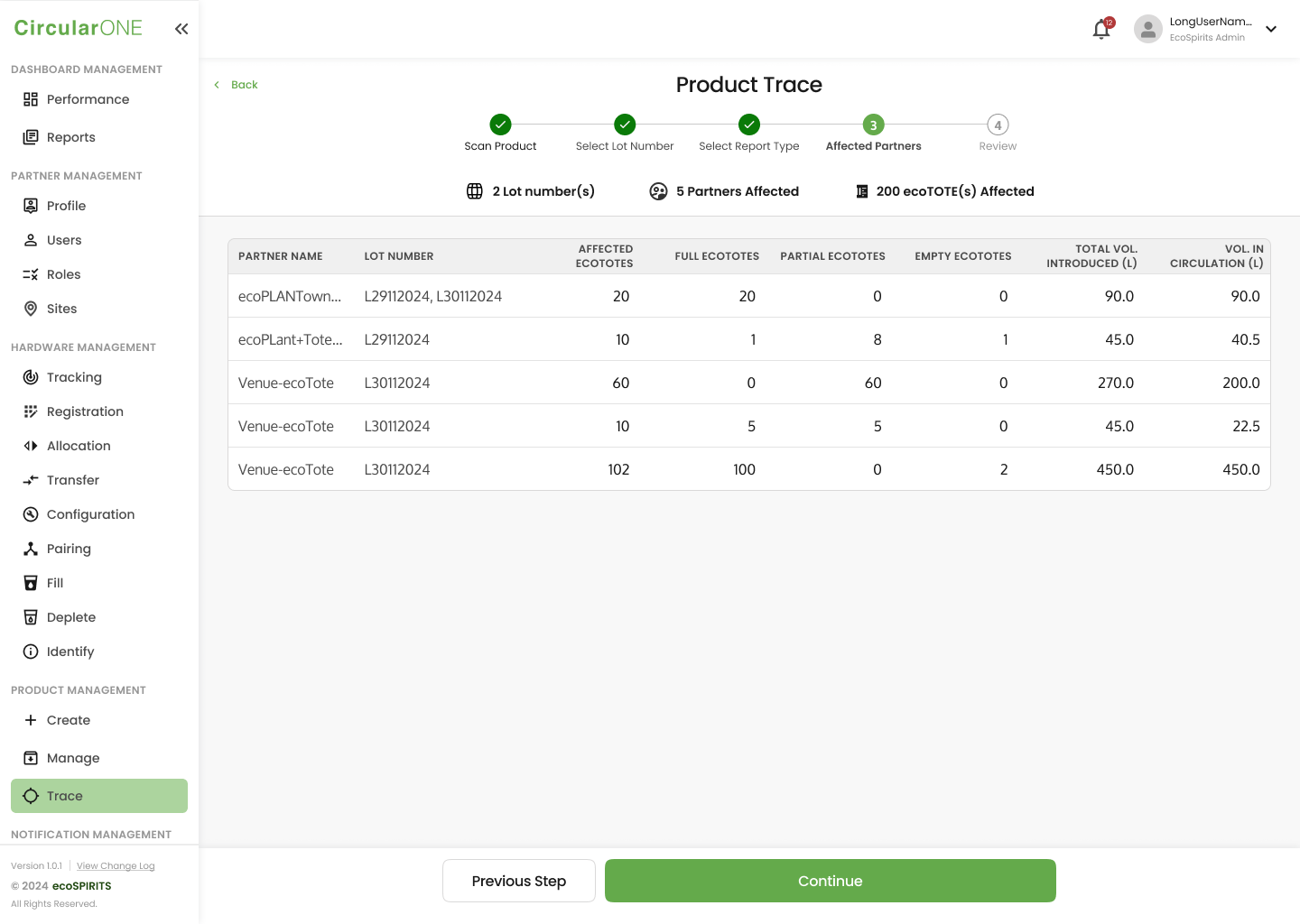
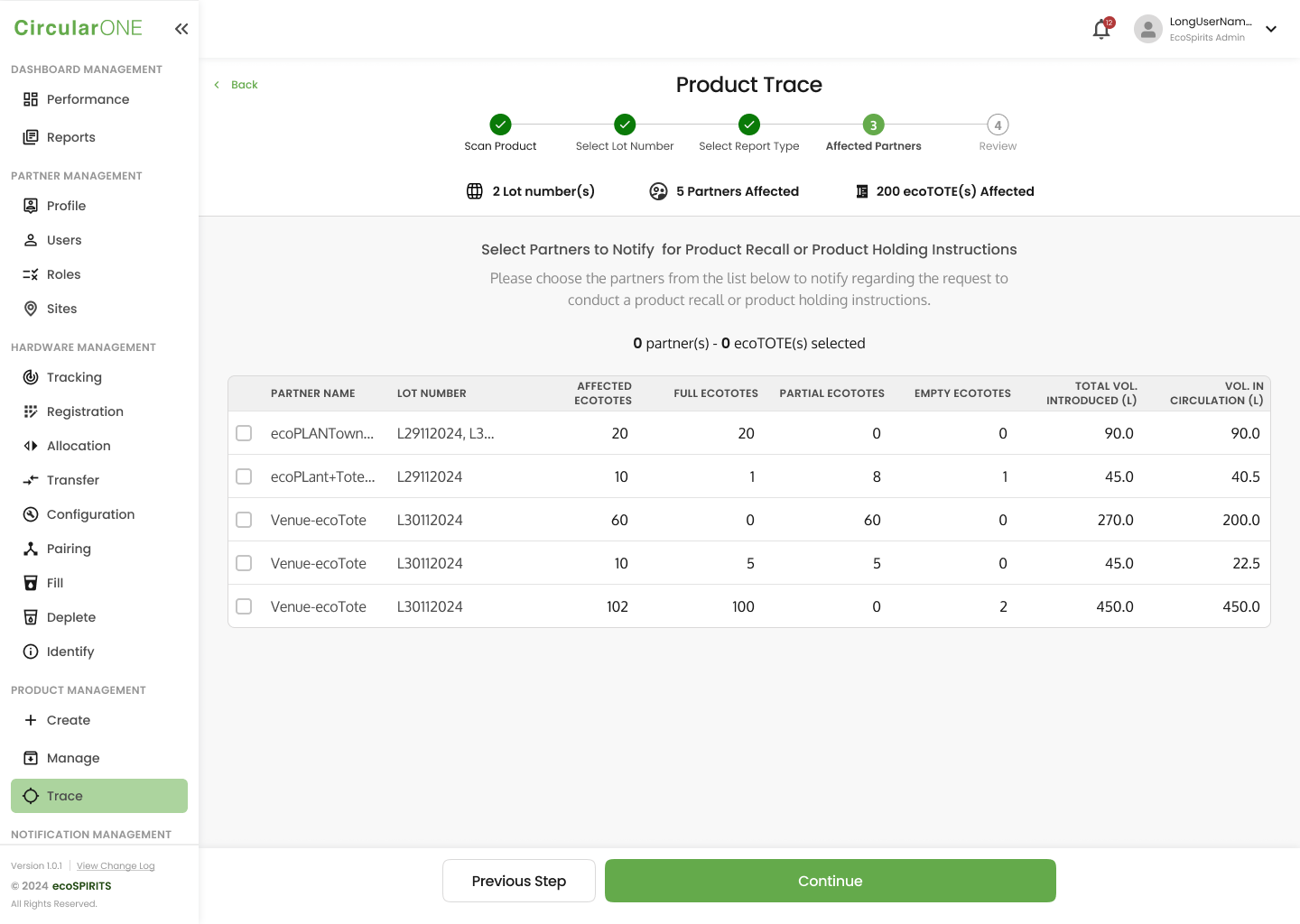
View the affected partners and summary of the affected ecoTOTEs and volume in circulation. Select ‘Continue’ to proceed. | ||
| ||
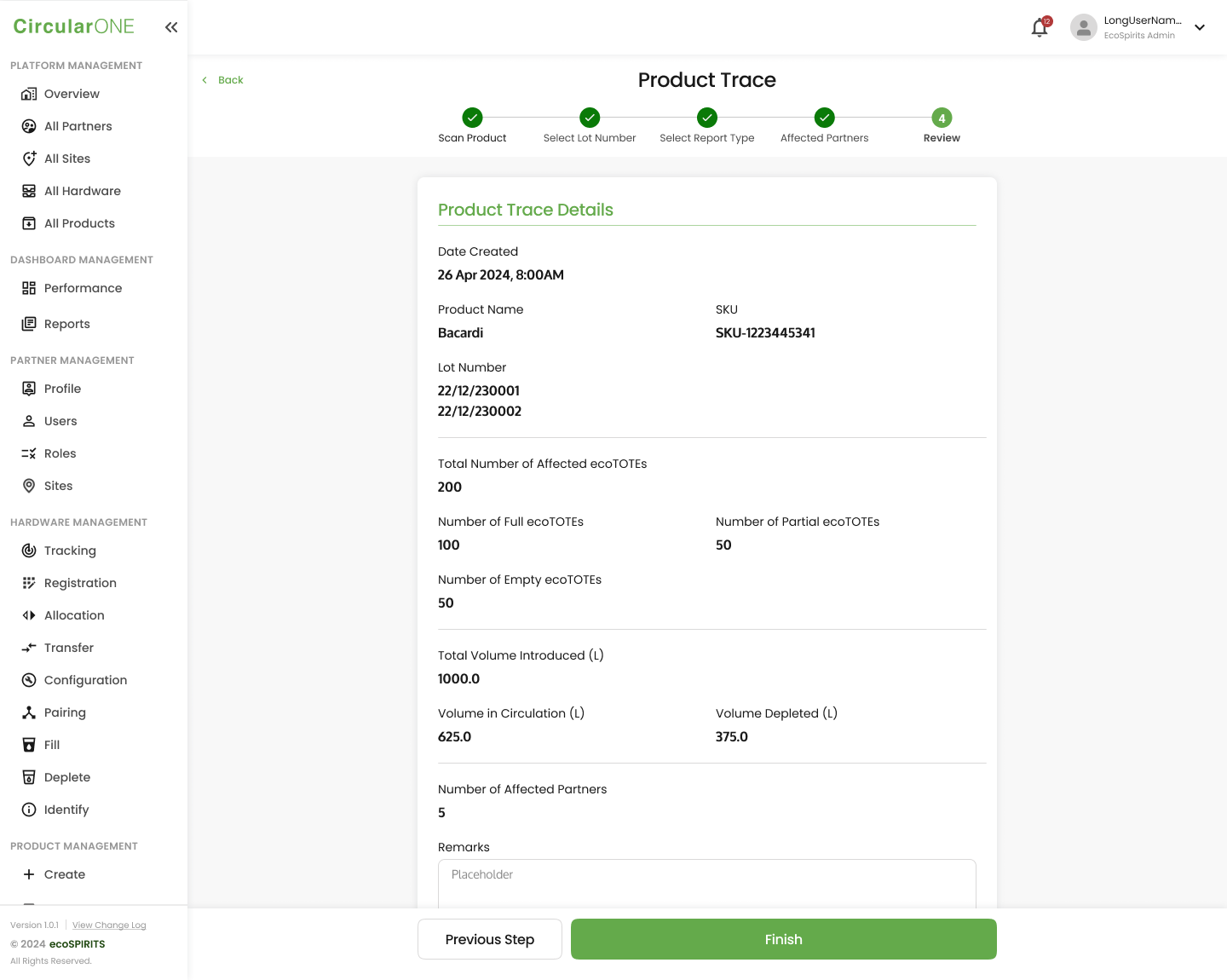
View the Product Trace Report and select ‘Finish’ to complete the report | ||
| ||
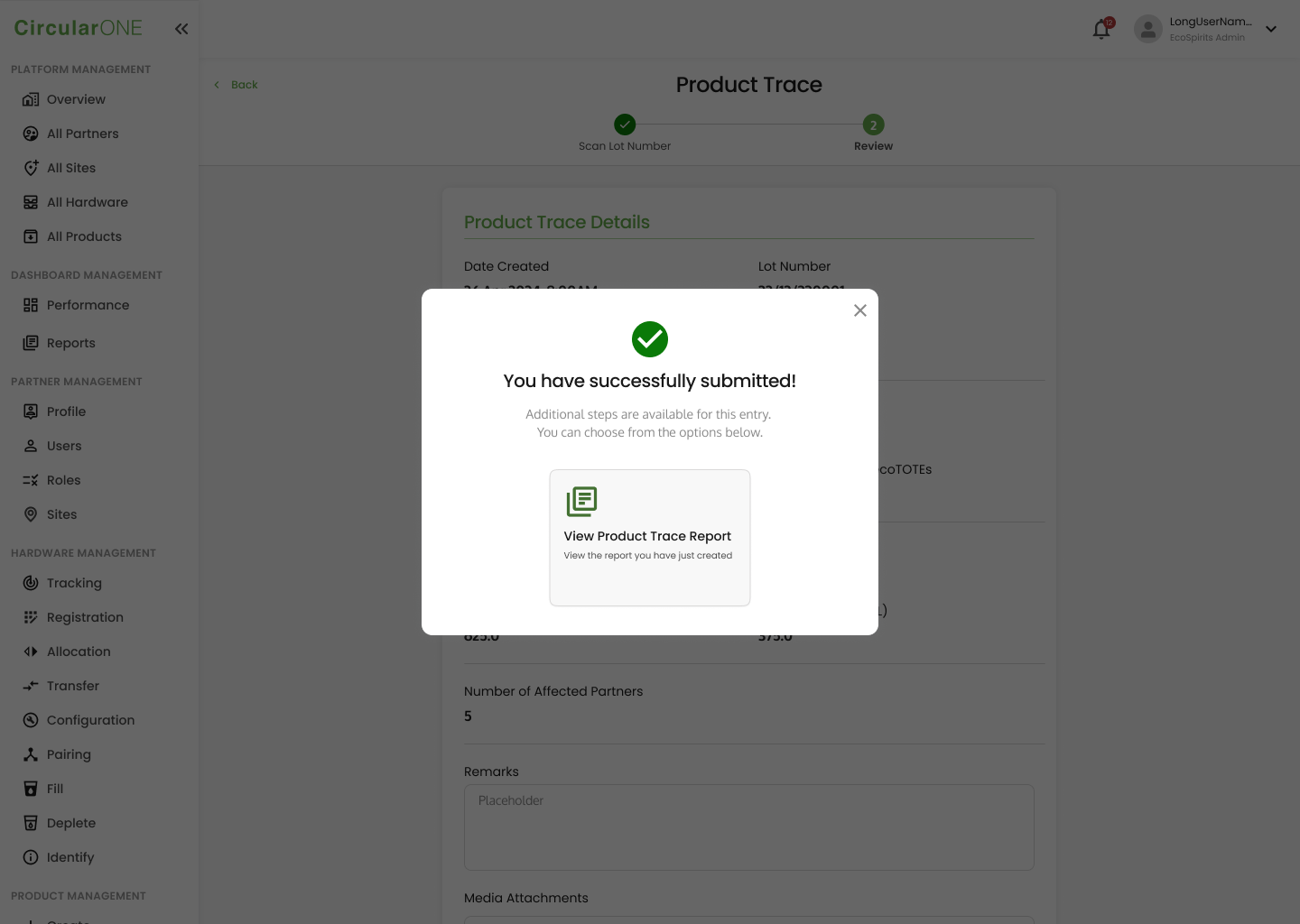
If successful, you will be able to select the option to View the Product Trace Report | ||
| ||
Create A New Trace and Notify Report
To create a new trace report and notify the affected partners, you can:
Steps | ||
|---|---|---|
1 | Head to ‘Trace’ under Product Management | |
| ||
2 | Select ‘Create Report’ | |
3 | View the scanning instructions and select ‘Scan Product Code’ to proceed | |
| ||
4 | Scan the Product Code either by QR Code or Manual Input | |
| ||
5 | View the scanned product and select ‘Continue’ to proceed | |
| ||
6 | Select the Lot Number which you would like to trace and click ‘Continue’ | |
| ||
7 | Select ‘Trace and Notify Partners’. Choose between ‘On Hold’ or ‘Product Recall’ for the status. | |
| ||
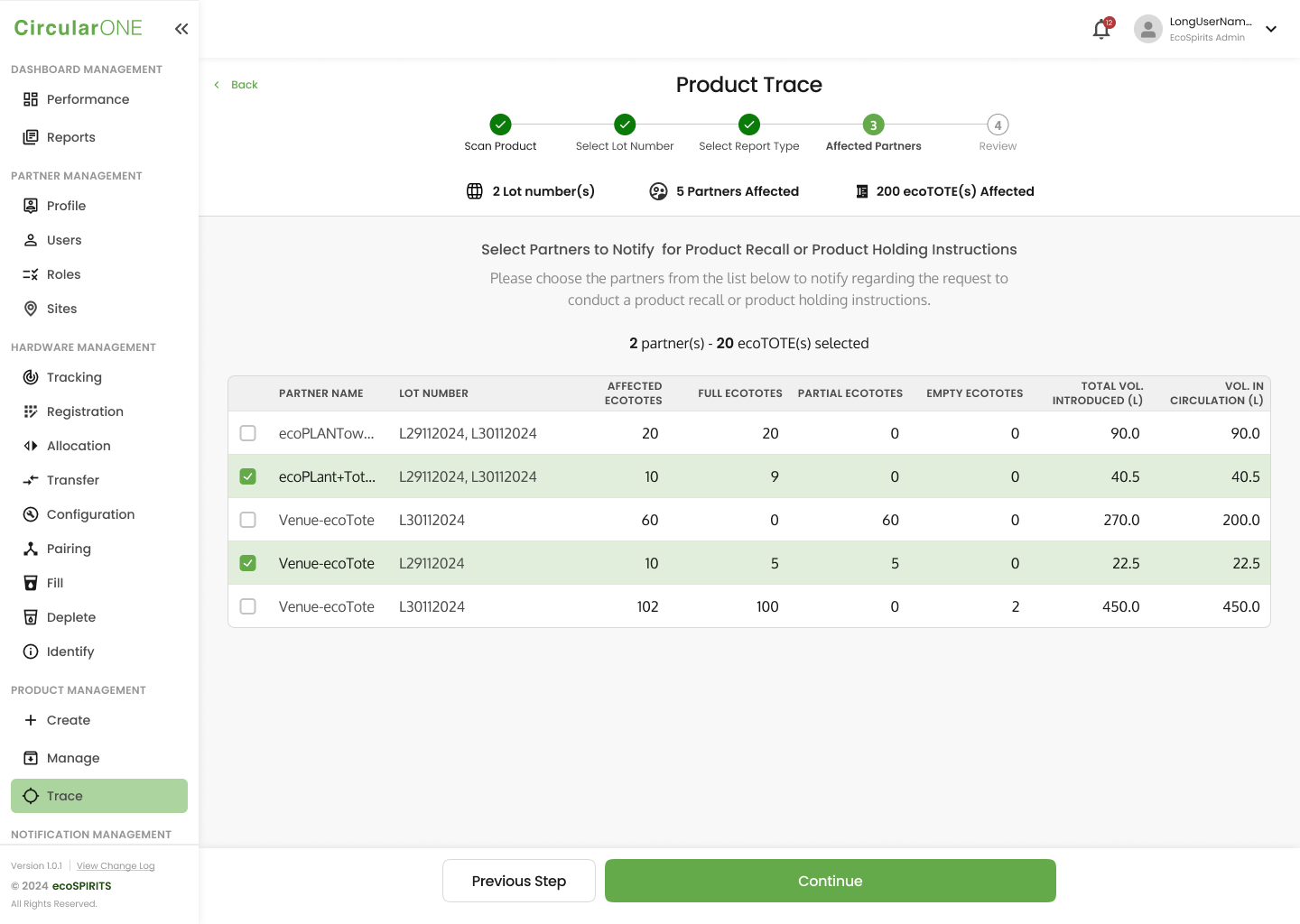
8 | View the affected partners and summary of the affected ecoTOTEs and volume in circulation. | |
| ||
9 | Select the partners that you would like to notify. Thereafter, select ‘Continue’ to proceed. | |
| ||
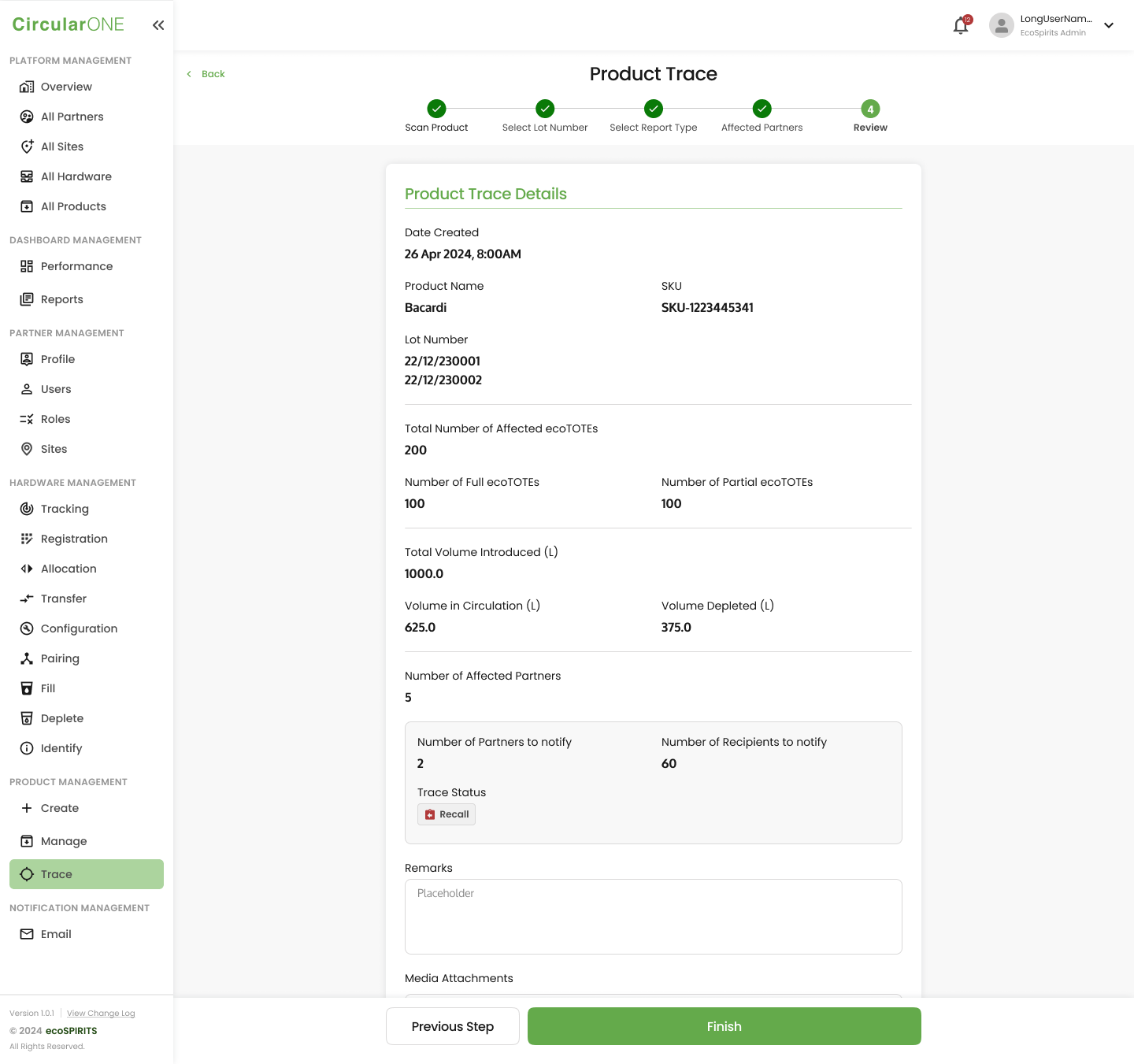
10 | View the Trace Report Summary and select ‘Finish’ to complete the report | |
| ||
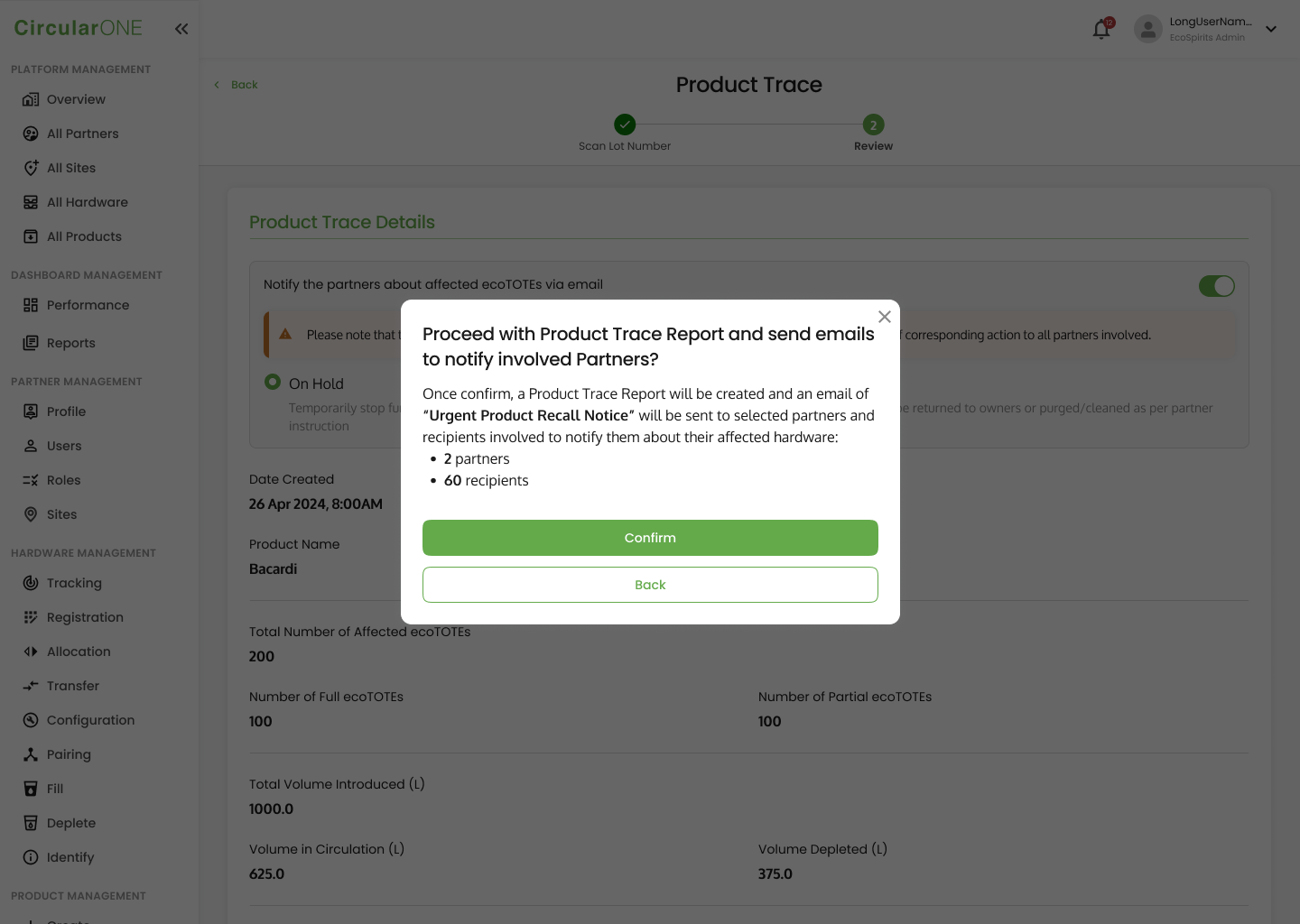
11 | Confirm that you would like to inform the involved partners | |
| ||
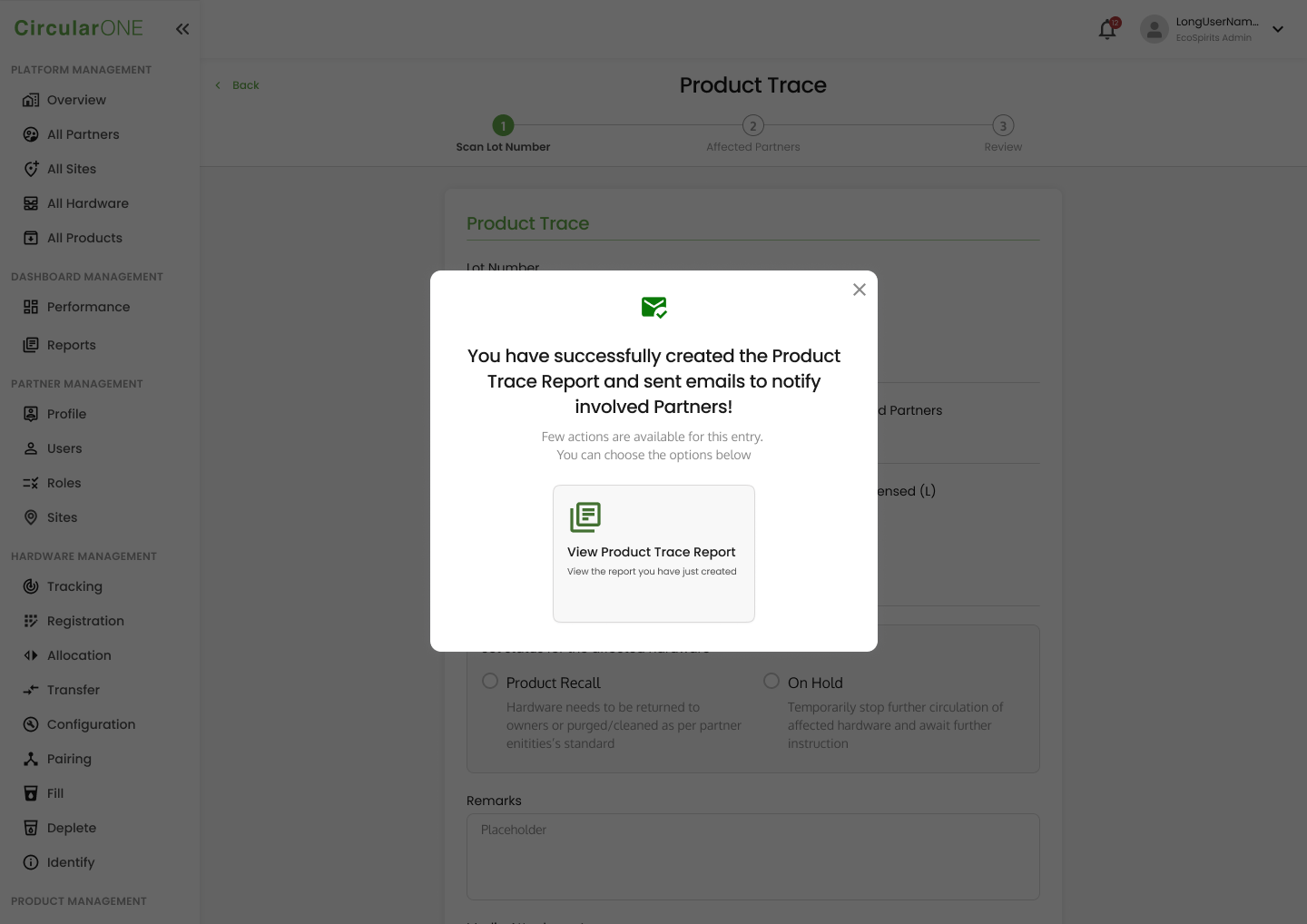
12 | If successful, you will be able to select the option to View the Product Trace Report | |
| ||
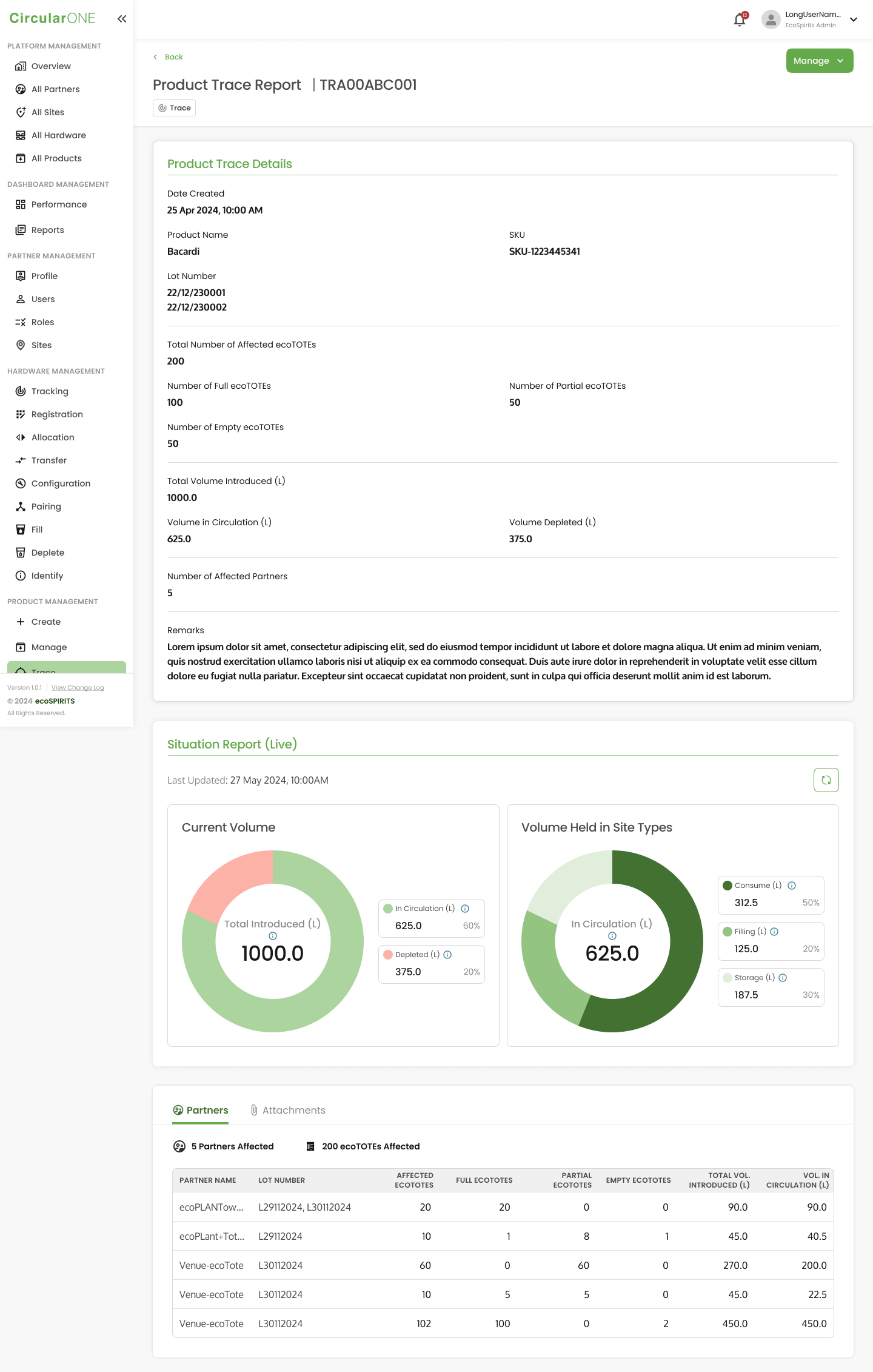
View Trace Situational Report
To view a trace situational report, you can:
Steps | ||
|---|---|---|
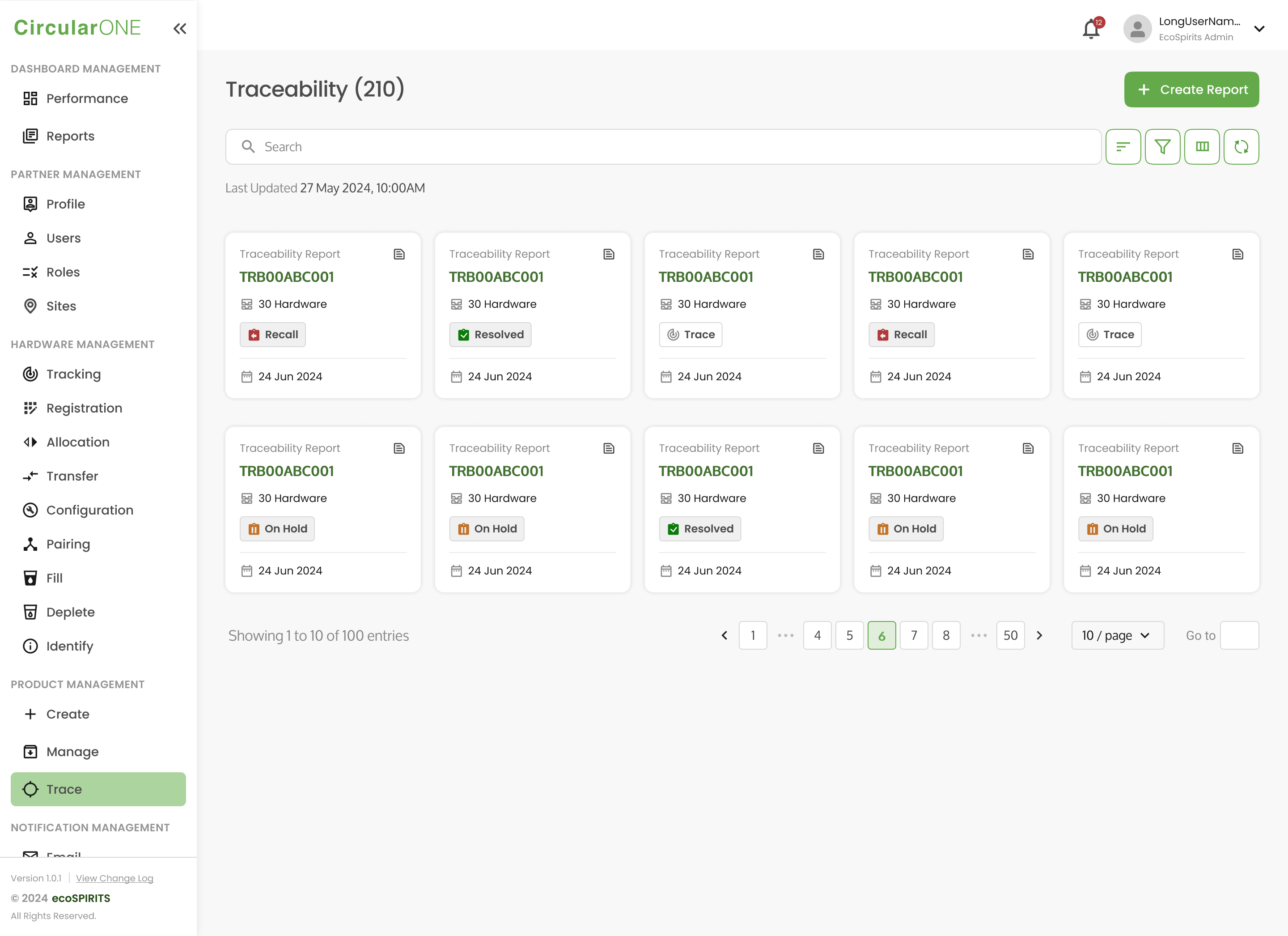
1 | Head to ‘Trace’ under Product Management | |
| ||
2 | View any trace report | |
| ||
Update Status of On-Hold/Product Recall Trace Report
To update the status of an existing On-Hold/Product Recall Trace Report, you can:
Steps | ||
|---|---|---|
1 | Head to ‘Trace’ under Product Management’ | |
2 | View an On-Hold or Product Recall Report | |
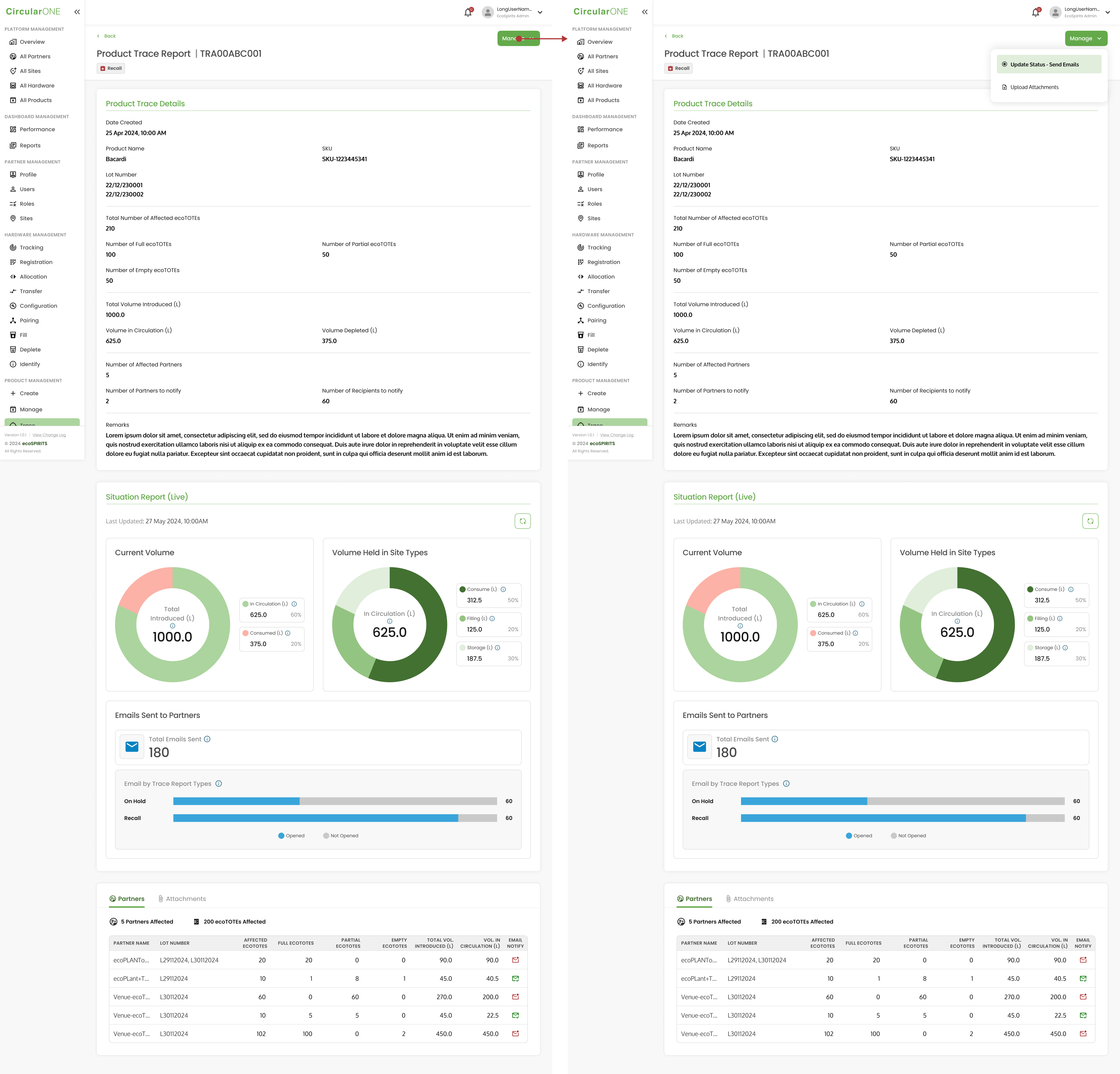
3 | Select ‘Manage’ and click ‘Update Status - Send Emails’ | |
| ||
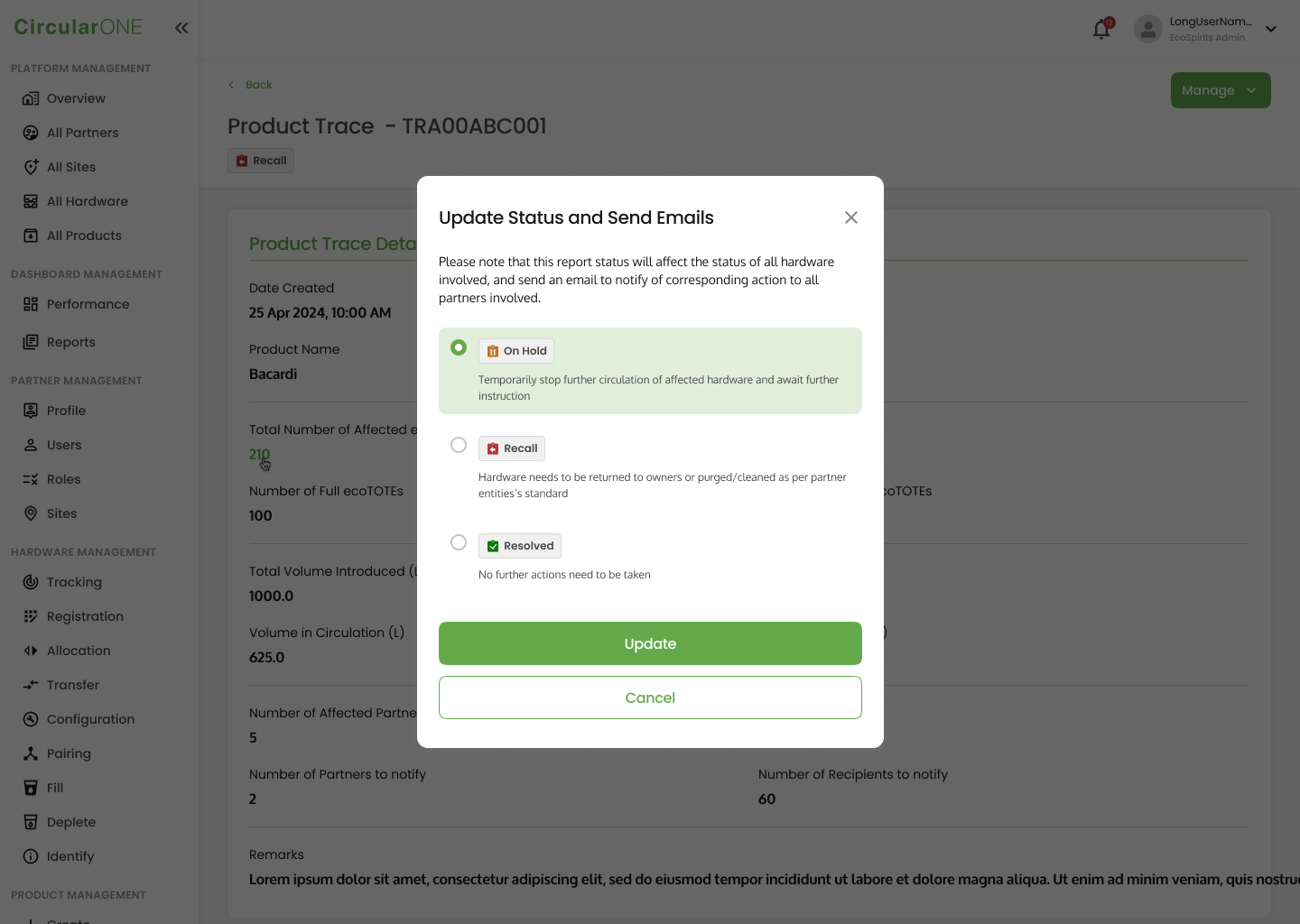
4 | Select the relevant updated status for the report (On-hold, Recall, Resolve) and click on ‘Update’ | |
| ||
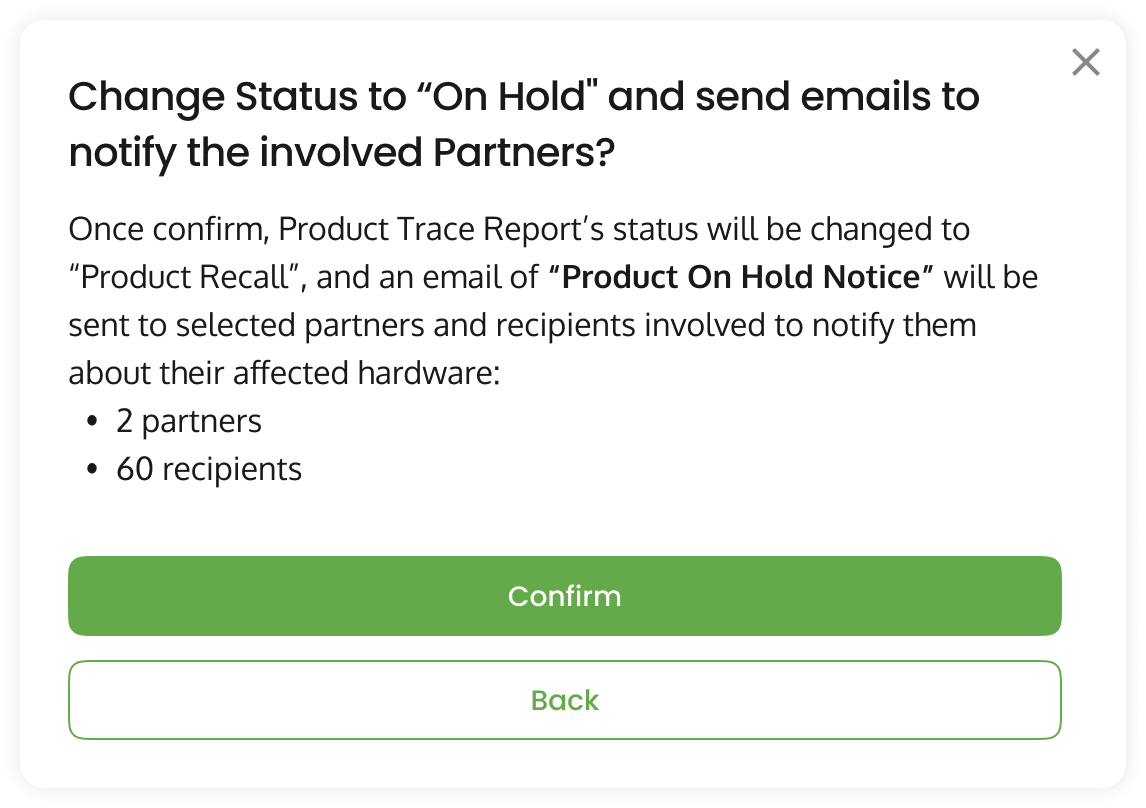
5 | If ‘On Hold’ is selected, you will be required to confirm the status update by selecting ‘Confirm’ and the respective partners will be notified. | |
| ||
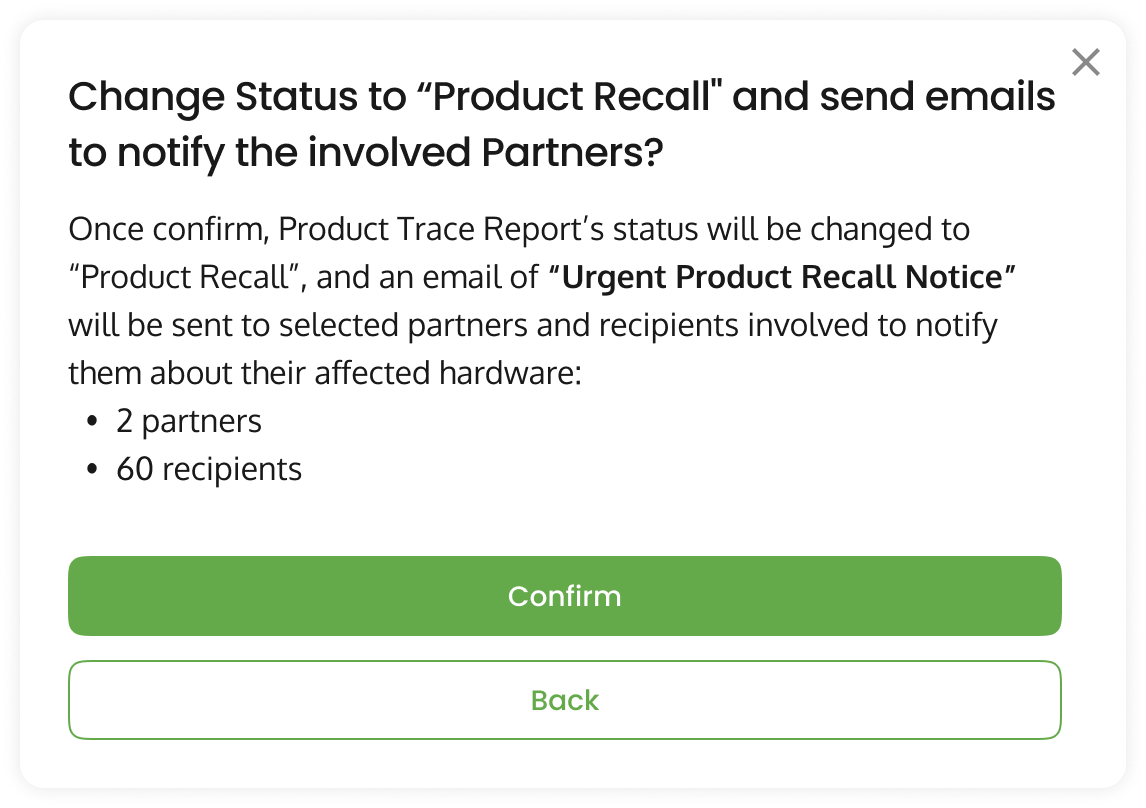
6 | If ‘Recall’ is selected, you will be required to confirm the status update by selecting ‘Confirm’ and the respective partners will be notified. | |
| ||
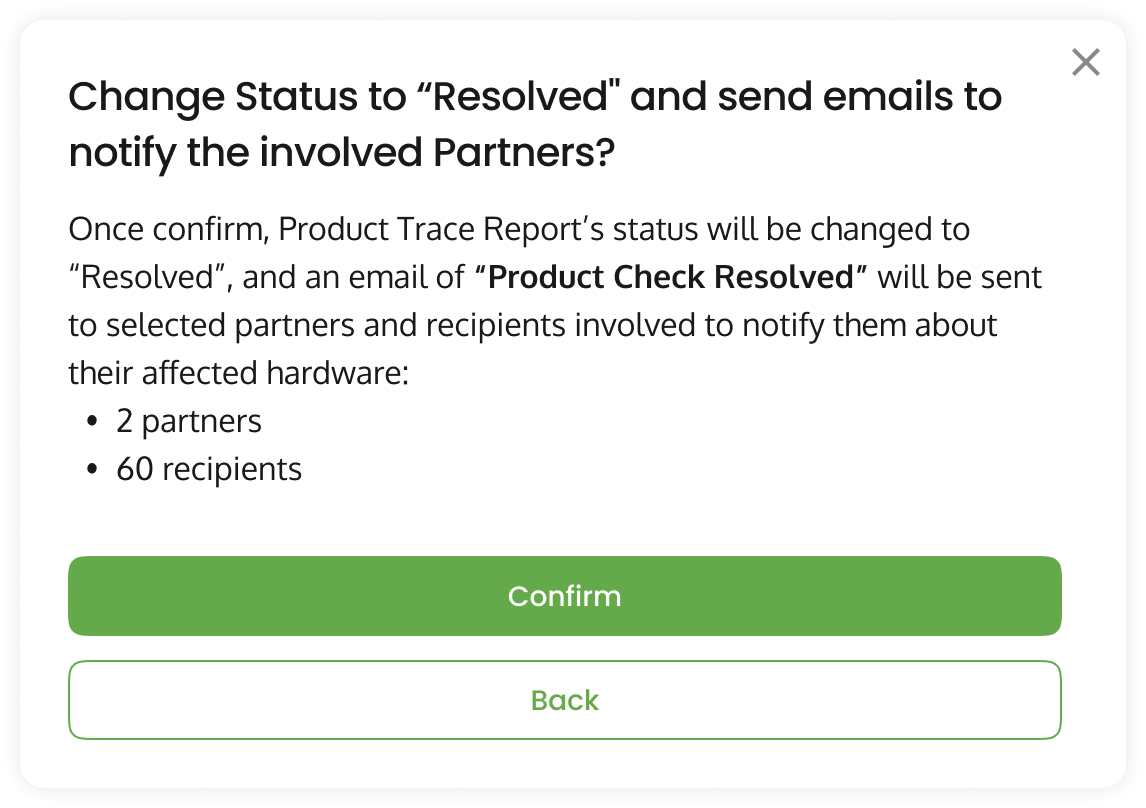
7 | If ‘Resolved’ is selected, you will be required to confirm the status update by selecting ‘Confirm’ and the respective partners will be notified. | |
| ||
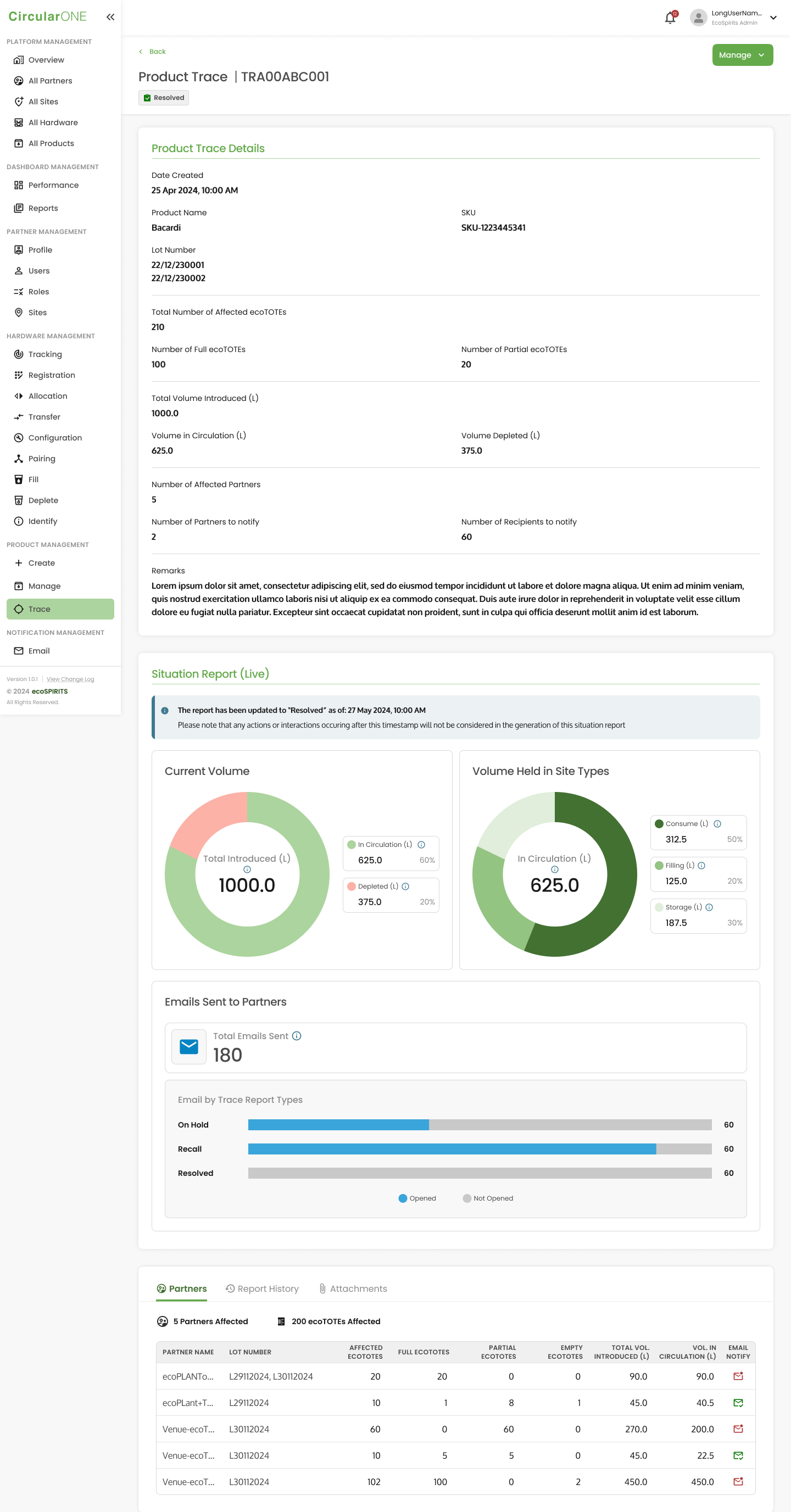
8 | If the situational report has been successfully resolved, any actions or interactions occurring after the resolved timestamp will no longer be considered under the Live Update of the situation report | |
| ||
No comments to display
No comments to display